Getting started
Activate your license
Find your Frames For Figma license key, activate the ACSS plugin for Figma, and manage your license from the plugin's Settings screen.
The ACSS plugin for Figma asks for a license key the first time you run it. Your key comes with your Frames For Figma purchase. Activating takes less than a minute and needs an internet connection.
Find your license key
Section titled “Find your license key”You can find your license key in two places:
- Your purchase confirmation email. The key is in the email you received when you bought Frames For Figma.
- Your customer portal. Sign in with the email address you used for the purchase to see and copy your key at any time.
Your key starts with FFF_, followed by a long string of letters and numbers. Copy the whole key, from the first character to the last.
Activate the plugin
Section titled “Activate the plugin”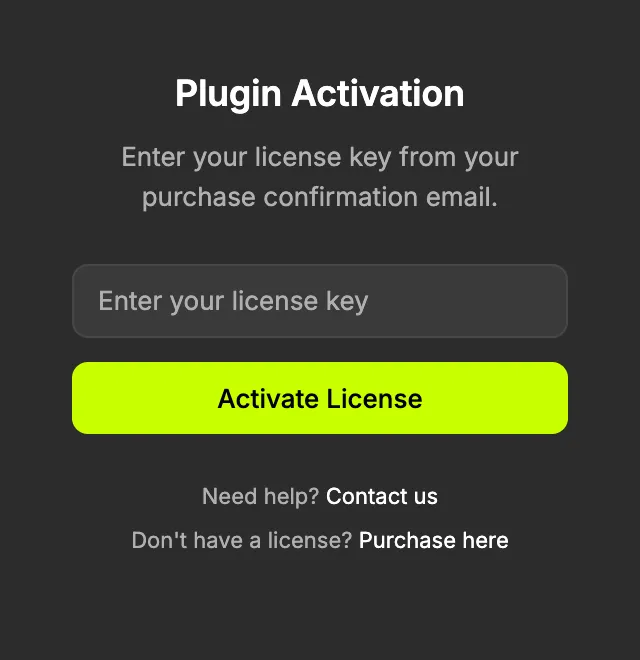
-
Run the plugin in any Figma design file. If it isn’t activated yet, the Plugin Activation screen opens with the message “Enter your license key from your purchase confirmation email.”
-
Paste your key into the Enter your license key field.
-
Click Activate License, or press Enter.
-
Wait a moment. When you see “License activated successfully!”, the plugin opens its home menu and you’re ready to go.
You only do this once on each computer, or each browser if you use Figma in a browser. The plugin remembers your activation, so it opens straight to the home menu next time.
Check your license status
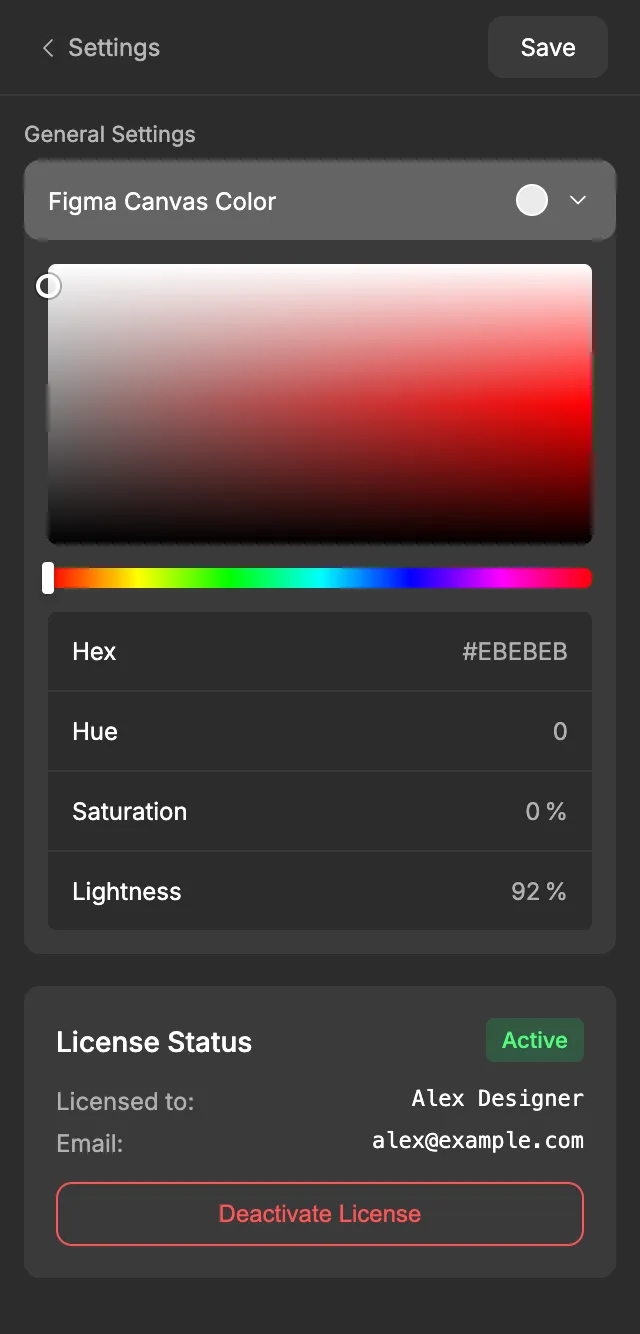
Section titled “Check your license status”Open Settings from the home menu and scroll to License Status. It shows:
- A badge: Active, Expired or Invalid.
- Licensed to: and Email:, the name and email address on the license.
- Expires:, if your license has an end date.
Use it on another computer or Figma account
Section titled “Use it on another computer or Figma account”Your activation is linked to the Figma account you’re signed in to.
- Same Figma account, another computer: run the plugin and enter your key again. This doesn’t use up another activation.
- Another Figma account: entering your key there counts as a new activation. Each key can be activated a limited number of times.
If you’ve reached the limit, deactivate the license on an account you no longer use, or ask for help in the Facebook group.
Deactivate your license
Section titled “Deactivate your license”Deactivate your license when you move to another Figma account or want to free up an activation.
-
Open Settings from the home menu.
-
In License Status, click Deactivate License.
-
Confirm. The plugin goes back to the Plugin Activation screen.
Deactivating doesn’t touch your designs. The variables and styles the plugin created stay in your files, and the plugin still remembers your settings for each file when you activate it again.
Working offline
Section titled “Working offline”The plugin checks your license over the internet. After a successful check, it keeps working without a connection for a while, so you can work on a train or a plane. If it has been offline for too long, it asks you to activate again: connect to the internet and reopen the plugin.
The variables and styles the plugin created are ordinary Figma variables and styles. They stay in your file and keep working without the plugin, online or offline.
If activation doesn’t work
Section titled “If activation doesn’t work”The plugin shows a message under the key field. Here’s what each one means.
| Message | What to do |
|---|---|
| Please enter a license key | The field is empty. Paste your key and try again. |
| This license key does not exist. | The key wasn’t recognized. Copy it again from your email or customer portal, and make sure you copied all of it, without spaces before or after. |
| This license key has expired. | Your license has ended. Check its status in your customer portal. |
| This license has reached its activation limit. | The key is already active on as many Figma accounts as it allows. Deactivate it on an account you no longer use. |
| This license has been disabled or revoked. | The license is no longer valid, for example after a refund. Ask for help in the Facebook group. |
| License activation timed out. Please check your internet connection and try again. | The plugin couldn’t reach the license server. Check your connection, turn off a VPN or firewall that might block it, and try again. |
| Failed to activate license. Please check your license key and try again. | Something else went wrong. Check the key and try again. If it keeps happening, ask in the Facebook group. |
Still stuck? Ask in the Facebook group and include the exact message you see. Never post your full license key in public.