UI kit
UI kit overview
What's inside the Frames For Figma UI kit, how its pages are organized, and how its components follow the variables from the ACSS plugin for Figma.
The Frames For Figma UI kit is a Figma file with ready-made website sections, utility components like buttons and form fields, and pages that preview your design system. Every component uses the variables that the ACSS plugin for Figma creates, so when you change a color or a font size in the plugin and click Save, the whole kit follows.
How the file is organized
Section titled “How the file is organized”The file has five groups of pages. Each group starts with a parent page (with an emoji in its name) and has child pages below it, marked with “↳”.
| Page group | What’s inside |
|---|---|
| 📒 Style Guide & Documentation | Previews of your colors, type, spacing, widths, shadows and corner radius. See Style guide pages. |
| 📘 Project Fundamentals | Your business details, logo and main navigation, reused across the kit. See Identity and Navigation. |
| 📙 Website templates | The Frames section library: headers, heroes, features, pricing, footers and about 40 more categories. See Website templates. |
| 📕 Utility components | Building blocks such as Section, Sitebuilder, Button, Link, Aspect Ratio and the form fields. See Utility components. |
| 📗 Website design | Empty pages for your own work: Moodboard, Wireframe and Final design. |
Two pages sit above the groups: 👋 Start Here, a short welcome with links to these docs, and 📓 Thumbnail, the cover image Figma shows for the file in your file browser.
The parent pages of each group are only there to keep the page list tidy. The content is on the child pages.
How the kit uses your design system
Section titled “How the kit uses your design system”The kit’s components don’t contain fixed values. Their spacing, widths, text sizes, colors, corner radius and button padding are linked to variables and text styles from the plugin:
| What you change in the plugin | What follows in the kit |
|---|---|
| Color Palette and Backgrounds & Text | Buttons, links, backgrounds, text colors and dark sections |
| Typography | Every heading and text layer, through the text styles |
| Spacing | Gaps inside components and the padding of every section |
| Layout | Content width, website width and the width steps |
| Borders and Buttons & Links | Corner radius, border widths, button padding and sizes |
| Forms | Labels, inputs, help text and their colors |
So you set up your design system once in the plugin and then design with the kit, instead of restyling components one by one. Read Collections, variables and styles to see what the plugin creates.
Desktop and Mobile
Section titled “Desktop and Mobile”Most components have a Device property with a Desktop and a Mobile variant. The Mobile variant is built for a 422 px wide screen and uses the Mobile variables and text styles, for example Mobile/M Space M and Text/M Text M.
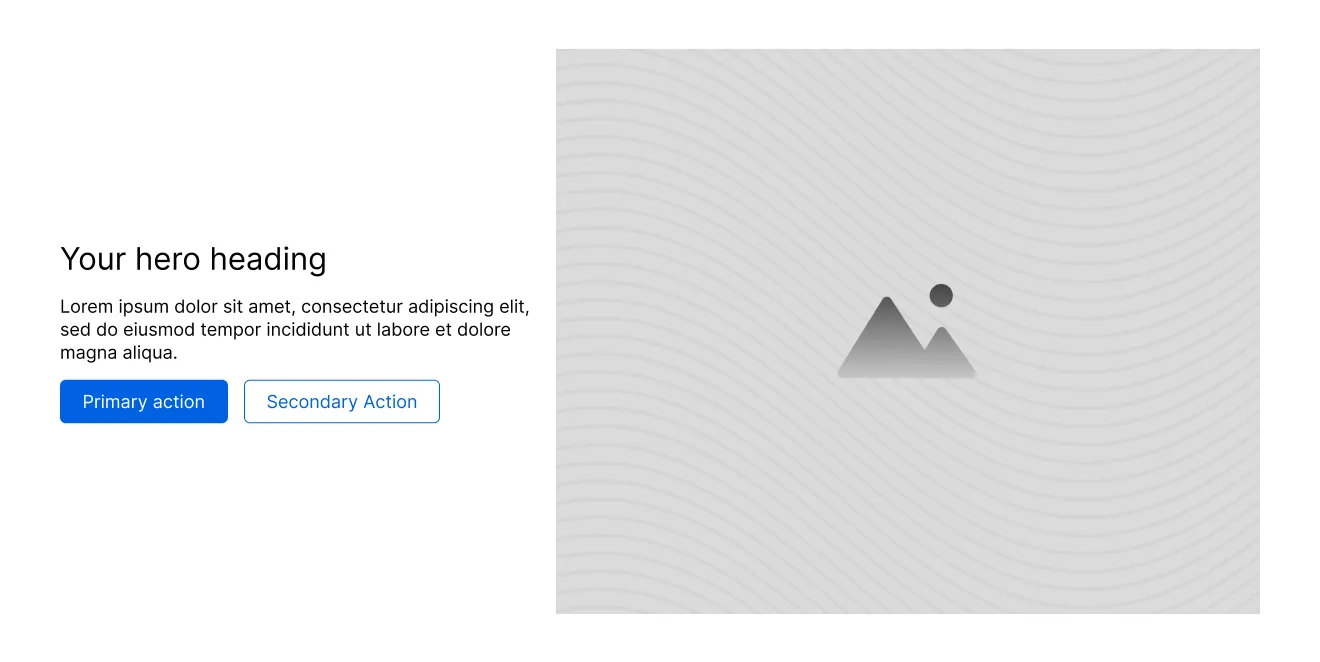
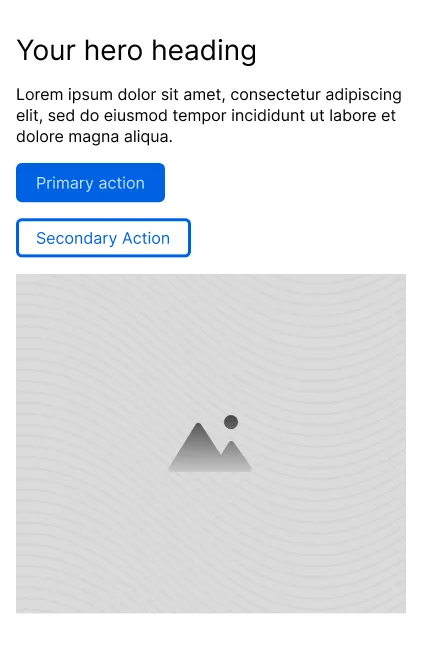
To design a mobile page, place the same components and switch Device to Mobile in the Design panel. Read more in Desktop and mobile.
Component names
Section titled “Component names”Website templates are named by category and a code word from the NATO alphabet: Hero Alpha, Hero Bravo, Feature Section Charlie and so on. The names match the components in Frames, the WordPress library the kit is based on, so a developer can look up the same layout by name.
Each category comes in three sizes:
- Sections, such as Feature Section Alpha: a complete, full-width part of a page.
- Grids, such as Feature Grid Alpha: a group of cards for use inside a section.
- Cards, such as Feature Card Alpha: a single item.
Your own components and pages
Section titled “Your own components and pages”- Put your own components on the ↳ Custom components page, the last page in the 📙 Website templates group.
- Use the 📗 Website design pages for your project: collect inspiration on Moodboard, sketch layouts on Wireframe, and finish pages with images and colors on Final design.
Next steps
Section titled “Next steps”- First steps with the kit: set up your colors, fonts, logo and navigation.
- Website templates: build pages from ready-made sections.