Color Palette
Global lightness and hover
Set how light each shade is across every color family, and how the hover shade relates to each family's main color.
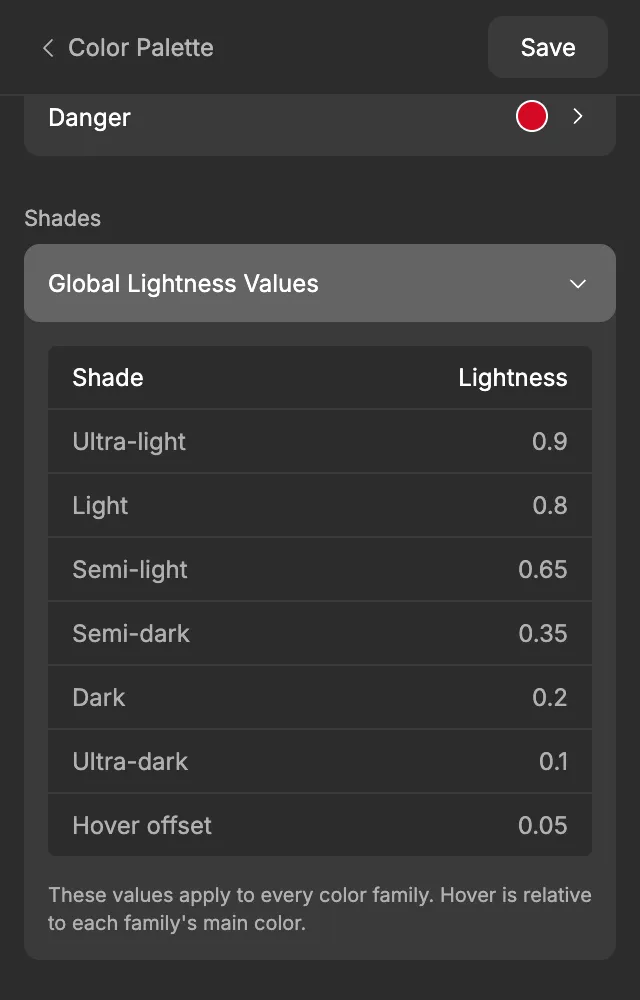
One table in the ACSS plugin for Figma decides how light every shade is, in every color family. Make Ultra-light a little lighter here, and it changes for Primary, Neutral, Danger and all the others at once. The same table sets how far the Hover shade sits from each main color.
Settings
Section titled “Settings”Open Global Lightness Values in the Shades section, at the bottom of the Color Palette screen.
| Shade | Default lightness |
|---|---|
| Ultra-light | 0.9 |
| Light | 0.8 |
| Semi-light | 0.65 |
| Semi-dark | 0.35 |
| Dark | 0.2 |
| Ultra-dark | 0.1 |
| Hover offset | 0.05 |
Lightness runs from 0 (black) to 1 (white). Type a new value to change it. A changed value gets an amber dot; hover over it to see Reset, and click it to go back to the default.
The Hover offset isn’t a lightness: it’s how much lighter the Hover shade is than each family’s main color. See How hover works.
As the note under the table says: “These values apply to every color family. Hover is relative to each family’s main color.”
- Every family uses these values, Primary included. The only exception is a shade you changed in a family’s Granular shade adjustment table: that shade keeps your value.
- Main isn’t in the table. Each family’s main lightness comes from Primary, or from the family itself when it has Manual controls on.
- Chroma isn’t in the table either. Each shade gets its family’s chroma, as close as its lightness allows. See Closest possible chroma.
How hover works
Section titled “How hover works”The Hover shade is the color a button or link turns when someone points at it. It isn’t a fixed lightness like the other shades. It’s worked out from each family’s main color:
Hover = main lightness + Hover offset
With the defaults, every main color is at 0.55 (55 %), so every Hover shade is at 0.6: a little lighter than the main color.
Very light colors have little room to get lighter. So when a family’s main lightness is 0.75 or more, or adding the offset would go above 0.95, Hover flips and goes darker instead. A main color at 0.8, for example, gets a Hover at 0.75. Hover over Hover offset in the table for a short reminder of this rule.
You can also enter a negative offset, from -0.5 to 0.5, to make every Hover darker than its main color. It then flips the other way: very dark main colors, at 0.25 or below, get a lighter Hover.
Because Hover follows each family’s own main color, a family with its own lightness from Manual controls automatically gets a matching Hover. To set one family’s Hover by hand, use its Granular shade adjustment table.
Three ways to write lightness
Section titled “Three ways to write lightness”The plugin shows lightness in three ways. They all use the same scale:
| Where | Format | Default Primary |
|---|---|---|
| Lightness slider, on Primary and with Manual controls | 0 – 100 % | 55 % |
| Global Lightness Values and Granular shade adjustment tables | 0 – 1 | 0.55 |
| Color picker on Primary | White at the top, black at the bottom | Handle a little above the middle |
So 0.9 in a table is 90 % on a slider.
In WordPress
Section titled “In WordPress”ACSS 4 has the same shades. When you export to WordPress, the export writes the final lightness, chroma and hue of every shade, Hover included, for every family. WordPress gets the same shades you see in Figma.
Learn more in the ACSS color docs.
Good to know
Section titled “Good to know”- Changing a value here does nothing in Figma until you click Save. Then every shade variable that uses it updates.
- The table changes lightness only. To make one family’s shades more or less vivid, change its chroma with Manual controls.