Plugin screens
Forms
Style form labels, inputs and help text once, with colors for forms on light and dark backgrounds, and get Figma variables and text styles for them.
The Forms screen styles the three parts of a form field: the label, the input and the help text below it. You set sizes and spacing once, then pick colors for forms that sit on light backgrounds and forms that sit on dark ones. The ACSS plugin for Figma turns all of it into variables and text styles, so every form in your file looks the same.
Before you start
Section titled “Before you start”Forms reuse settings from other screens, so set those up first:
- Typography: the Font Size options are your text sizes, from Text XS to Text XXL, and the form text styles use the Font Family from the Text part of Typography.
- Spacing: the padding options are your spacing steps, from Space XS to Space XXL.
- Borders: the Border Radius options are your radius variables.
- Color Palette: the colors on the Light Styles and Dark Styles tabs come from your palette.
Settings
Section titled “Settings”The screen has three tabs. Default holds the sizes and spacing. Light Styles and Dark Styles hold the colors.
Default
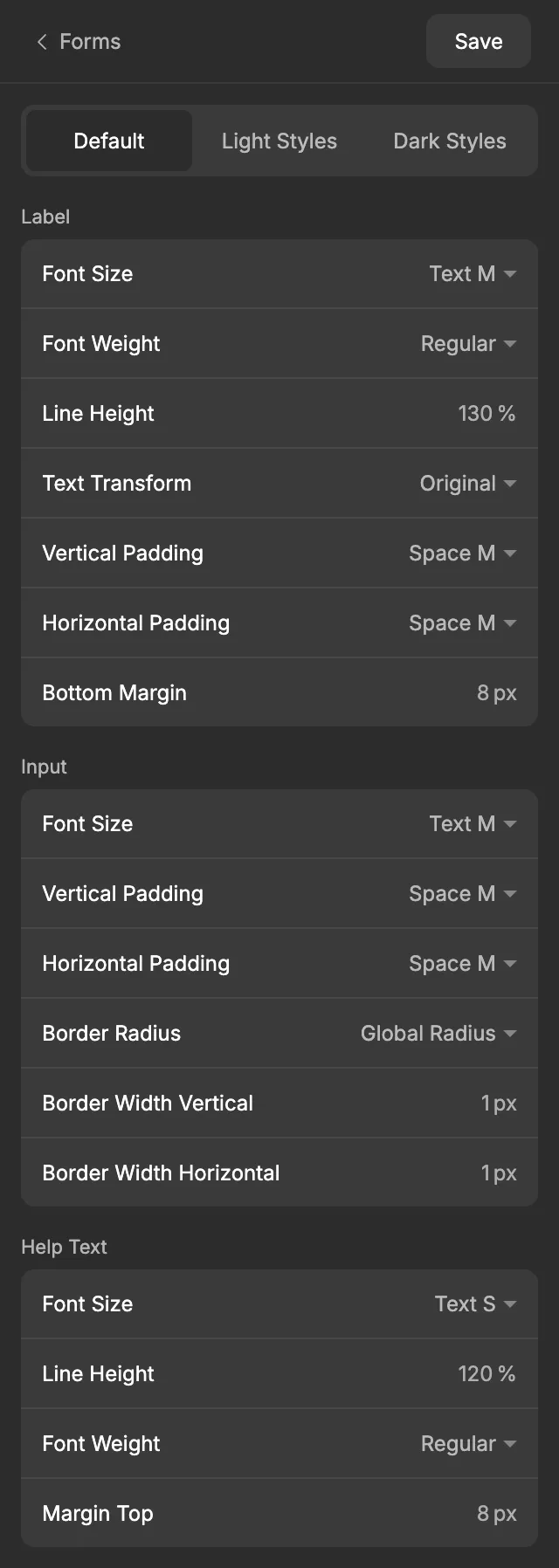
Section titled “Default”The label is the text above a field that says what to enter, like “Email”.
| Setting | Default | What it does |
|---|---|---|
| Font Size | Text M | The label’s text size, from Text XS to Text XXL. |
| Font Weight | Regular | The label’s weight. |
| Line Height | 130 % | The label’s line height. |
| Text Transform | Original | Original, Uppercase, Lowercase or Title case. |
| Vertical Padding | Space M | Space above and below the label text. Pick a step from Space XS to Space XXL, or Custom to type a pixel value in Custom Value. |
| Horizontal Padding | Space M | Space to the left and right of the label text. Same options as Vertical Padding. |
| Bottom Margin | 8 px | The space between the label and the input. |
Label padding is most noticeable when you give labels a background color on the Light Styles or Dark Styles tab.
The input is the field people type into.
| Setting | Default | What it does |
|---|---|---|
| Font Size | Text M | The size of the text typed into the field. |
| Vertical Padding | Space M | Space above and below the text inside the field, from Space XS to Space XXL. |
| Horizontal Padding | Space M | Space to the left and right of the text inside the field. |
| Border Radius | Global Radius | How rounded the field’s corners are: Global Radius, Radius XS to Radius XXL, or Radius 50%. |
| Border Width Vertical | 1 px | The thickness of the top and bottom borders. |
| Border Width Horizontal | 1 px | The thickness of the left and right borders. |
Help Text
Section titled “Help Text”Help text is the small hint below a field, like “We’ll never share your email.”
| Setting | Default | What it does |
|---|---|---|
| Font Size | Text S | The help text size. |
| Line Height | 120 % | The help text line height. |
| Font Weight | Regular | The help text weight. |
| Margin Top | 8 px | The space between the input and the help text. |
The spacing steps you pick here have a desktop and a mobile version: the mobile version uses the same step from your mobile spacing scale. Bottom Margin, Margin Top and Custom padding values are 2 px smaller on mobile, so 8 px on desktop becomes 6 px on mobile. See Desktop and mobile values.
Light Styles and Dark Styles
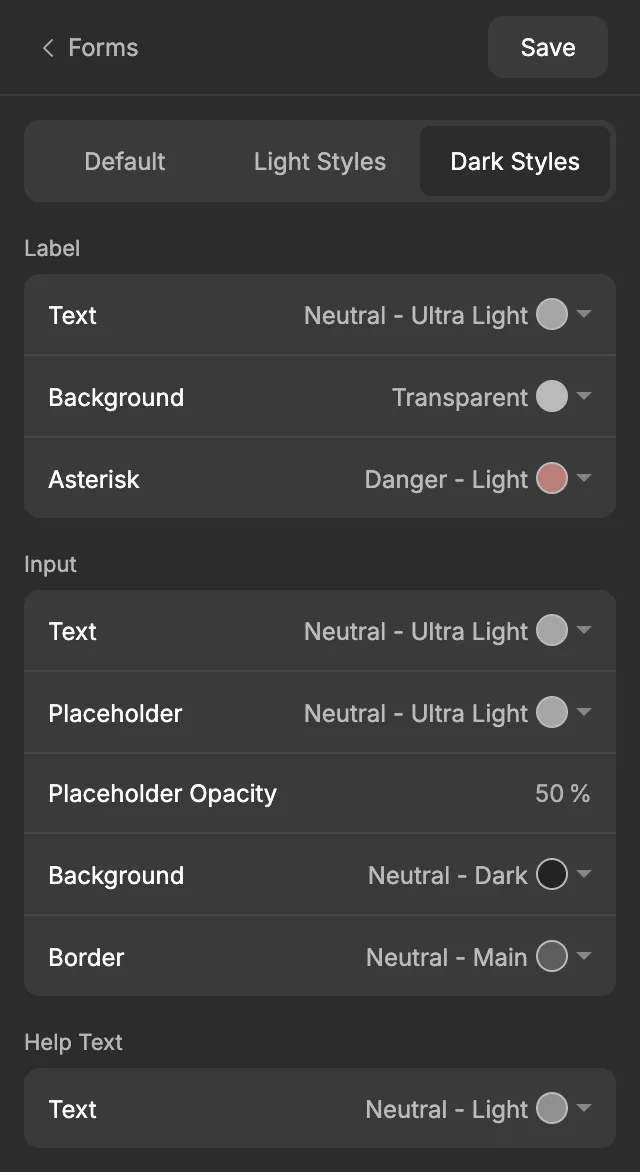
Section titled “Light Styles and Dark Styles”Light Styles are for forms on light backgrounds, and Dark Styles are for forms on dark backgrounds, such as a newsletter sign-up in a dark footer. Both tabs have the same settings.
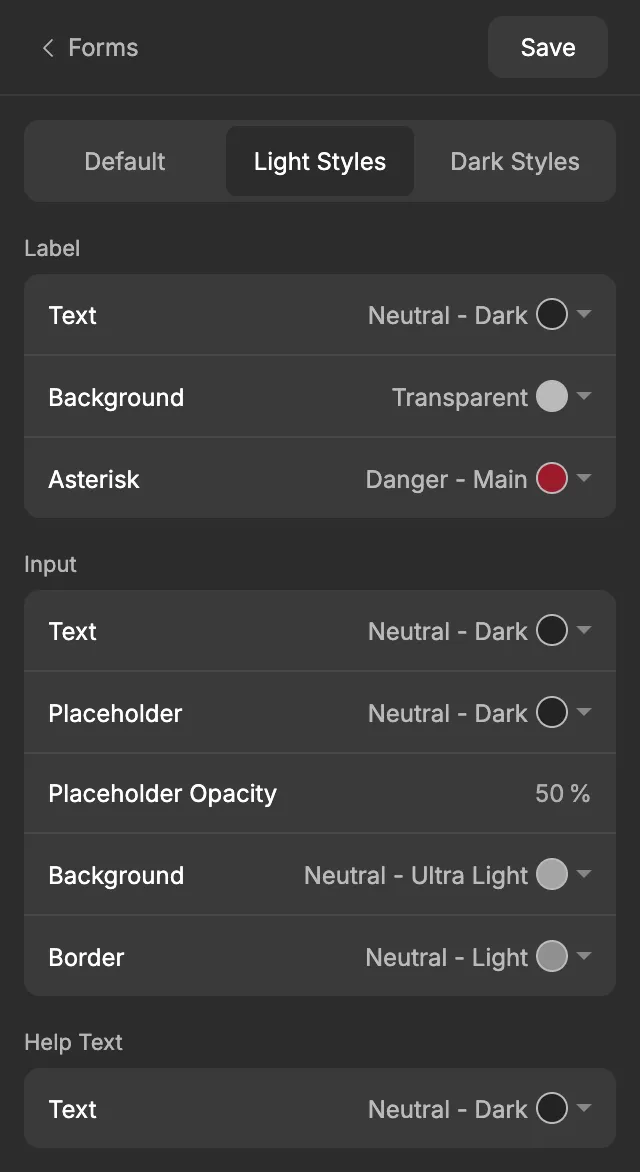
Each color is a dropdown with every color in your palette, plus Transparent, White and Black. It works like the dropdowns on the Backgrounds & Text screen.
| Setting | Light Styles default | Dark Styles default | What it colors |
|---|---|---|---|
| Label Text | Neutral - Dark | Neutral - Ultra Light | The label text. |
| Label Background | Transparent | Transparent | The area behind the label. |
| Label Asterisk | Danger - Main | Danger - Light | The asterisk (*) that marks a required field. |
| Input Text | Neutral - Dark | Neutral - Ultra Light | The text typed into the field. |
| Input Placeholder | Neutral - Dark | Neutral - Ultra Light | The example text shown in an empty field. |
| Input Placeholder Opacity | 50 % | 50 % | How strong the placeholder color is. Lower values make the placeholder fainter than real input. |
| Input Background | Neutral - Ultra Light | Neutral - Dark | The field’s fill. |
| Input Border | Neutral - Light | Neutral - Main | The field’s border. |
| Help Text Text | Neutral - Dark | Neutral - Light | The help text. |
When you’re done, click Save. See Saving and auto-save for what Save does.
What gets created in Figma
Section titled “What gets created in Figma”Everything goes into the Forms collection. Desktop variables start with D and mobile variables with M. None of the Forms variables have code syntax.
| Variable | What it’s for |
|---|---|
Label/D Label Vertical Padding, Label/D Label Horizontal Padding (and M versions) |
Label padding. Each one points to the Space variable you picked, for example Desktop/D Space M. |
Label/D Label Bottom Margin, Label/M Label Bottom Margin |
The space between the label and the input. |
D Form Input Y Padding, D Form Input X Padding (and M versions) |
Top and bottom, and left and right padding inside the input. Each one points to the Space variable you picked. |
Form Input Border Radius |
The input’s corner radius. It points to the radius you picked in the Borders collection. |
Form Input Border Width Vertical, Form Input Border Width Horizontal |
The top and bottom, and left and right border widths of the input. |
Help Text/D Form Help Margin, Help Text/M Form Help Margin |
The space between the input and the help text. |
Label/Form Label Text Color Light, Label/Form Label Background Color Light, Label/Form Label Asterisk Color Light |
Label colors for light backgrounds. |
Input/Form Input Text Color Light, Input/Form Input Placeholder Color Light, Input/Form Input Background Color Light, Input/Form Input Border Color Light |
Input colors for light backgrounds. |
Input/Form Input Placeholder Opacity Light |
The placeholder opacity for light backgrounds. |
Help Text/Form Help Text Color Light |
The help text color for light backgrounds. |
The same color and opacity variables ending in Dark |
The colors for dark backgrounds. |
The color variables are aliases: they point to the palette colors you picked, so they follow your Color Palette.
The plugin also creates six text styles in a Forms folder. All of them use your Typography text font.
| Text style | What it uses |
|---|---|
Forms/D Form Label, Forms/M Form Label |
The Label Font Size, Font Weight, Line Height and Text Transform. |
Forms/D Form Input, Forms/M Form Input |
The Input Font Size, in Regular weight with a 150 % line height. |
Forms/D Form Help Text, Forms/M Form Help Text |
The Help Text Font Size, Line Height and Font Weight. |
Using it in your designs
Section titled “Using it in your designs”To build a desktop form field on a light background:
- Make a vertical auto layout frame for the field. Put the label text in it, followed by a second vertical auto layout frame that holds the input frame and the help text.
- Apply the
Forms/D Form Label,Forms/D Form InputandForms/D Form Help Texttext styles to the matching text layers. - On the input frame, bind the padding to
D Form Input Y PaddingandD Form Input X Padding, the corner radius toForm Input Border Radius, and the stroke widths toForm Input Border Width Vertical(top and bottom) andForm Input Border Width Horizontal(left and right). - Set the input’s fill to
Input/Form Input Background Color Lightand its stroke toInput/Form Input Border Color Light. Color the text layers with the matchingLightcolor variables. - Bind the outer frame’s gap to
Label/D Label Bottom Margin(the space between the label and the input) and the inner frame’s gap toHelp Text/D Form Help Margin(the space between the input and the help text).
For placeholder text, set its color to Input/Form Input Placeholder Color Light and bind the layer opacity to Input/Form Input Placeholder Opacity Light. For a form on a dark background, use the Dark variables instead, and for mobile designs use the M variables and text styles.
In WordPress
Section titled “In WordPress”When you export to WordPress, your form settings become the ACSS (Automatic CSS) form settings:
- the label’s font size, weight, line height and Bottom Margin
- the input’s font size, padding, border radius and border width
- the help text’s font size, weight, line height and Margin Top
- the colors from the Light Styles tab. The placeholder color is exported at your Placeholder Opacity.
ACSS has one border width for inputs. If Border Width Horizontal is 0, ACSS draws only the bottom border; otherwise it draws all four sides at the larger of your two widths.
ACSS 4 has one set of form colors and adapts it to your site’s color scheme by itself, so the Dark Styles colors stay in Figma. To force a form’s look in WordPress, add the form--light or form--dark class to it. The label’s Text Transform and padding and the Asterisk color also stay in Figma, because ACSS has no matching settings.
ACSS styles forms built with WS Form, and forms must be turned on in ACSS for these styles to load. The exported file has them turned on.
Learn more in the ACSS form docs.
Good to know
Section titled “Good to know”- Pick Light Styles or Dark Styles by the background the form sits on, not by Figma’s light or dark theme.
- The input text style always uses Regular weight and a 150 % line height. The screen has no weight or line height setting for inputs.
- If you rename one of these variables or text styles in Figma, the next Save creates a new one with the original name, and the renamed one stops updating. Keep the plugin’s names.