Project fundamentals
Identity
Set your business name, contact details, copyright and logo once on the Identity page of the Frames For Figma UI kit, and every header, footer and the file thumbnail use them.
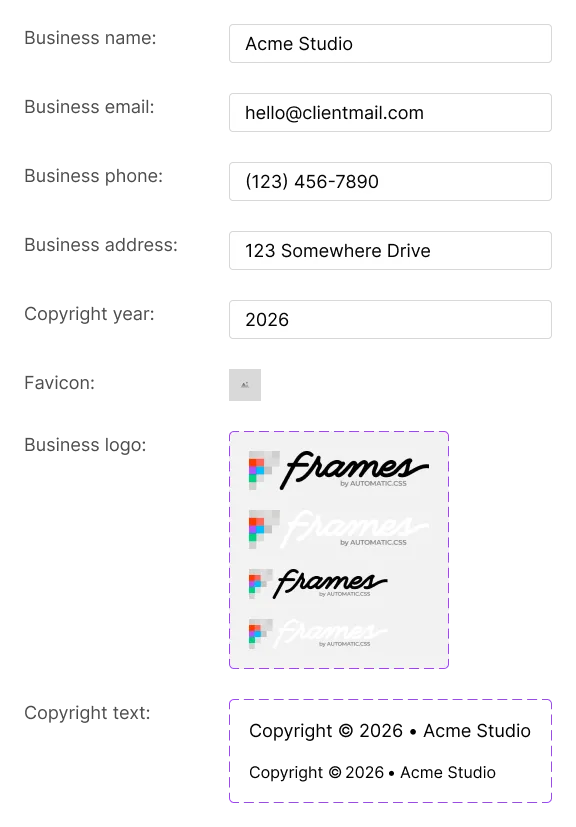
The ↳ Identity page (in 📘 Project Fundamentals) holds the details of the business you’re designing for: its name, email, phone, address, copyright line and logo. Figma isn’t a content management system, but the kit treats this page like one. Each detail is a component that headers, footers, contact sections and the file thumbnail reuse, so you change it once here and it changes everywhere.
What’s on the page
Section titled “What’s on the page”| Field | Component | Where it’s used |
|---|---|---|
| Business name | Business name |
Footers, contact sections, the copyright line |
| Business email | Business email |
Contact sections and footers |
| Business phone | Business phone number |
Contact sections and footers |
| Business address | Business address |
Contact and location sections |
| Copyright year | Copyright year |
The copyright line |
| Favicon | An image, not a component | A reference for the site icon |
| Business logo | Business logo |
Every header and footer, and the file thumbnail |
| Copyright text | Copyright |
Footers. It combines “Copyright ©”, the copyright year and the business name. |
You’ll also find these components in the Assets panel, so you can drop your logo or business name into your own designs.
Change the business details
Section titled “Change the business details”-
Go to 📘 Project Fundamentals → ↳ Identity.
-
Double-click a value, for example Acme Studio, and type your own. You’re editing the main component, so every copy of it in the file updates.
-
Do the same for the email, phone, address and copyright year.
The copyright line updates by itself, because it’s built from the copyright year and the business name.
Change the logo
Section titled “Change the logo”The Business logo component has four versions:
| Variation | Device | Use it on |
|---|---|---|
| Dark | Desktop, Mobile | Light backgrounds (a dark logo) |
| Light | Desktop, Mobile | Dark backgrounds (a white or light logo) |
-
On the Identity page, find the Business logo component and select the image layer inside its Device=Desktop, Variation=Dark version. (In the Layers panel it’s the only layer inside that version.)
-
In the Design panel, click the image fill under Fill and choose Choose image. Pick your logo file (PNG or JPG; for an SVG, export it as a PNG at 2x first).
-
Repeat for the other three versions. Use your light logo for the two Light versions.
Every header, every footer and the thumbnail on the 📓 Thumbnail page now show your logo.
Good to know
Section titled “Good to know”- A header or footer only follows the Identity page as long as you haven’t changed that detail directly in the header or footer. Right-click the layer and choose Reset all changes to link it again.
- Keep the details short. Long names or addresses can wrap in narrow layouts, especially in the Mobile variants.
- Your main menu lives on the Navigation page, next to this one.