Color Palette
Color Palette
Build the ACSS color palette in Figma, with ten color families and their shades created as native color variables.
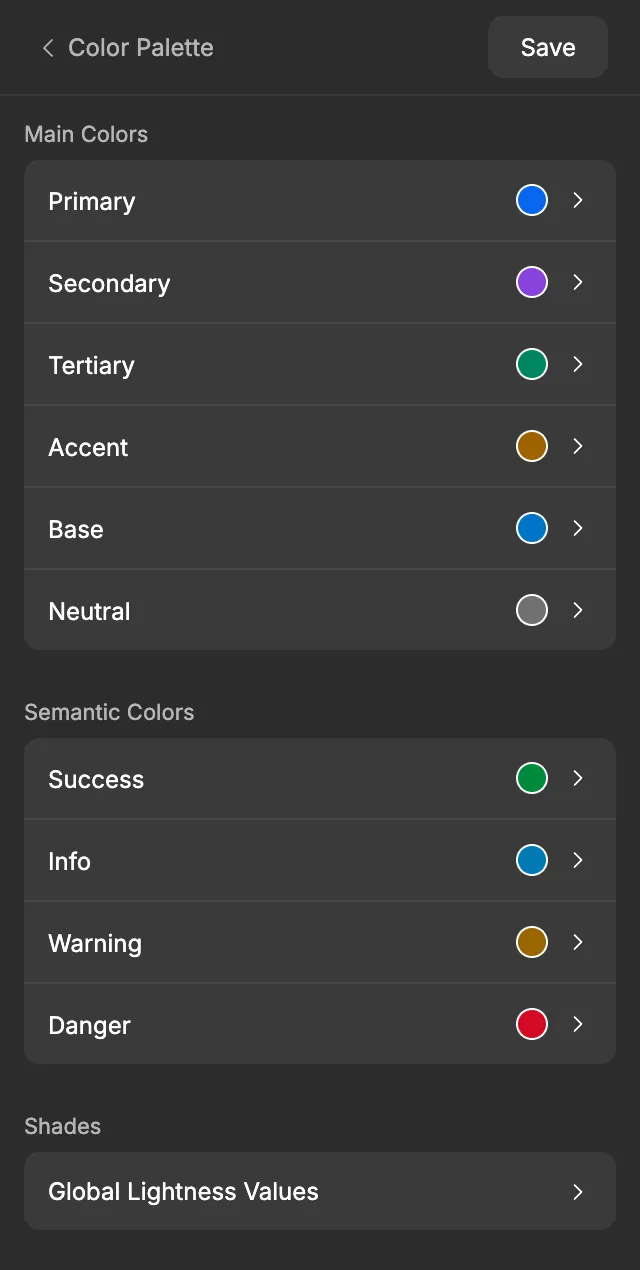
The Color Palette screen of the ACSS plugin for Figma builds your whole color system: ten color families, each with a full set of shades from ultra-light to ultra-dark. You pick one brand color and a hue for each other family, and the plugin works out the rest. Every color becomes a Figma variable that the other screens and your designs can use.
Before you start
Section titled “Before you start”Color Palette doesn’t depend on any other screen, so it’s a good place to start. Most other screens pick their colors from this palette: Typography, Borders, Shadows, Backgrounds & Text, Buttons & Links and Forms.
The plugin makes its colors for your Figma file’s color profile, sRGB or Display P3. If you plan to switch the file to Display P3, do that before you rely on the colors. See Display P3 and sRGB.
Settings
Section titled “Settings”In ACSS (Automatic CSS), every color comes with a set of shades, so you rarely pick a light or dark version of a color by hand. The plugin follows the same idea, and it uses OKLCH, the color format of ACSS 4. Each color is described by its lightness, chroma (how vivid it is) and hue.
Families
Section titled “Families”The screen lists the families in two sections. You can’t turn families off: all ten are always created.
| Family | Section | Default hue | Use it for |
|---|---|---|---|
| Primary | Main Colors | 260° (blue) | Your main brand color. It sets the lightness and chroma of the whole palette. |
| Secondary | Main Colors | 300° (purple) | A second brand color. |
| Tertiary | Main Colors | 165° (green) | A third brand color. |
| Accent | Main Colors | 70° (amber) | Highlights that need to stand out from the brand colors. |
| Base | Main Colors | 250° (blue) | A supporting color, often used for text and dark backgrounds in ACSS. |
| Neutral | Main Colors | Gray | Grays for text, borders and backgrounds. |
| Success | Semantic Colors | 150° (green) | Confirmations and positive states. |
| Info | Semantic Colors | 240° (blue) | Neutral messages and tips. |
| Warning | Semantic Colors | 75° (amber) | Cautions. |
| Danger | Semantic Colors | 25° (red) | Errors and destructive actions. |
Primary starts at Lightness 55 %, Chroma 0.22 and Hue 260°. Every other family copies Primary’s lightness and chroma and only picks its own hue, so the whole palette changes together when you change Primary. Neutral copies the lightness but has no chroma, which makes it gray. Read more in Primary sets the tone.
Shades
Section titled “Shades”Every family has the same eight shades. Their lightness comes from one shared table, so a family’s Light shade is as light as every other family’s Light shade.
| Shade | Default lightness |
|---|---|
| Ultra-light | 0.9 |
| Light | 0.8 |
| Semi-light | 0.65 |
| Main | The family’s own (55 % by default) |
| Hover | Main + 0.05 |
| Semi-dark | 0.35 |
| Dark | 0.2 |
| Ultra-dark | 0.1 |
Lightness runs from 0 (black) to 1 (white), so 0.9 is very light. The Shades section at the bottom of the screen holds these values in Global Lightness Values.
Inside a family
Section titled “Inside a family”Click a family to open it. A strip at the top previews its shades, from Ultra-light to Ultra-dark, with Hover last. Hover over a swatch to see its name. The family’s Main color is the swatch in its header.
Primary has a color picker, Lightness, Chroma and Hue sliders and a Hex field. Every other family has only a Hue slider and a Manual controls switch, which adds the other controls when you need them. Every family has a Transparencies row.
| To… | Read |
|---|---|
| Pick your brand color and understand lightness, chroma and hue | Primary sets the tone |
| Give one family its own lightness, chroma or exact hex color | Manual controls |
| Make the light or dark shades lighter or darker in every family | Global lightness and hover |
| Add see-through versions of a shade, like Primary at 50 % | Transparencies |
When you’re done, click Save. See Saving and auto-save for what Save does.
What gets created in Figma
Section titled “What gets created in Figma”Everything goes into the Color Palette collection. It has one mode: there are no light and dark modes. Families from the Main Colors section are in a Main Colors group and the four status colors are in a Semantic Colors group. Inside, each family has its own group with its eight shades.
| Variable | Code syntax | What it’s for |
|---|---|---|
Main Colors/Primary/Main |
var(--primary) |
Primary’s main color. |
Main Colors/Primary/Ultra-Light … Ultra-Dark |
var(--primary-ultra-light) … var(--primary-ultra-dark) |
Primary’s shades: Ultra-Light, Light, Semi-Light, Semi-Dark, Dark, Ultra-Dark. |
Main Colors/Primary/Hover |
var(--primary-hover) |
The hover state of the main color, for buttons and links. |
Main Colors/Secondary/Main … Semantic Colors/Danger/Hover |
var(--secondary) … var(--danger-hover) |
The same eight shades for every other family. |
White |
var(--white) |
Pure white. |
Black |
var(--black) |
Pure black. |
Transparent |
none | A fully transparent color, for a fill or stroke that should show nothing. |
Main Colors/Primary/Transparent/Main 50 |
color-mix(in oklch, var(--primary) 50%, transparent) |
Only if you add transparencies. |
That’s 80 shade variables plus White, Black and Transparent.
Each shade variable’s description holds its exact OKLCH value, for example oklch(0.55 0.22 260), so developers can copy it. If you write your own description on a variable, the plugin keeps it.
The shade variables can be used for fills, strokes and effect colors such as shadows. White, Black and Transparent are limited to fills and strokes.
Using it in your designs
Section titled “Using it in your designs”- Select a layer.
- In the right sidebar, hover over the Fill or Stroke and click the variable icon.
- Open the Color Palette collection and pick a color, for example
Main Colors›Primary›Main.
In Dev Mode, developers see the code syntax, for example var(--primary), instead of a raw color value.
Other screens build on this palette. Their color variables point to a Color Palette variable, so when you change a color here and click Save, every layer that uses it updates, directly or through those screens. For text and background colors, it’s often easier to pick the ready-made variables from Backgrounds & Text.
In WordPress
Section titled “In WordPress”When you export to WordPress, your palette becomes the ACSS 4 color settings, written in OKLCH. For every family, the export includes the main color as a hex value and the lightness, chroma and hue of the main color and every shade, so the site uses the colors you see in Figma. It also switches every family on in ACSS.
The plugin has no separate dark palette, so the export copies your palette into ACSS’s alternate color scheme as well. Primary’s lightness becomes ACSS’s unified lightness: see Primary sets the tone. Transparencies aren’t exported.
Learn more in the ACSS color docs.
Good to know
Section titled “Good to know”- Changing a color does nothing in Figma until you click Save. Save updates the existing variables, so layers that use them stay linked and change color.
- If you rename, move or delete a color variable in Figma, the next Save creates a new one with the original name, and a renamed one stops updating. Keep the plugin’s names.
- The plugin never deletes color variables, except transparency variables you removed in the plugin.
- The Figma canvas color isn’t set here. You’ll find it on the Settings screen.
- Coming from an older version of the plugin? Your palette is converted when you open it. See Upgrading.