Color Palette
Manual controls
Let one color family break from Primary with its own lightness, chroma or exact hex color, and fine-tune single shades.
By default, every family in the ACSS plugin for Figma follows Primary’s lightness and chroma and only picks its own hue. Manual controls let a family set its own lightness and chroma, match an exact hex color, and adjust single shades. Use them when a family really needs it: each change moves that family away from the balanced palette Primary gives you.
When to use them
Section titled “When to use them”- A brand color has to match an exact hex code from a brand guide.
- A yellow or green looks muddy at Primary’s lightness and needs to be lighter. See Closest possible chroma.
- You want a warm or cool Neutral instead of a pure gray.
- One shade of a family needs a nudge, for example a Light shade that’s too pale.
If you want to change a shade in every family at once, use Global lightness and hover instead.
Settings
Section titled “Settings”Every family except Primary has a Manual controls switch under its Hue slider. It’s off by default. Primary doesn’t need one: it always has all its controls.
Turning Manual controls on
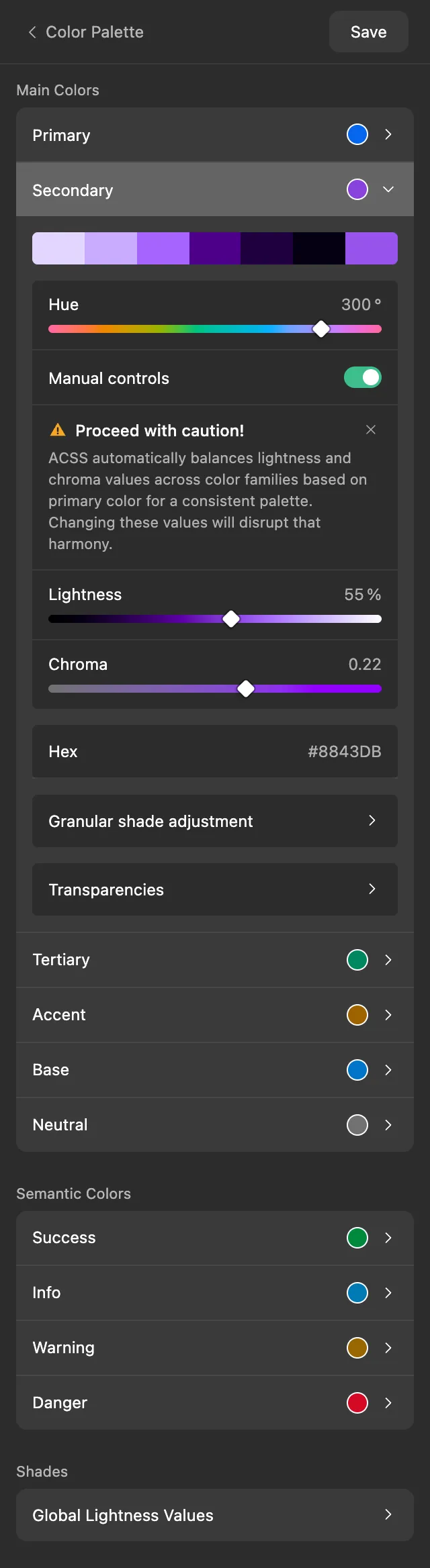
Section titled “Turning Manual controls on”When you turn on Manual controls, the family gets these extra controls:
- Lightness and Chroma sliders. They start at the values the family already has, so nothing changes until you move them.
- A Hex field.
- A Granular shade adjustment row.
A Proceed with caution! notice also appears: “ACSS automatically balances lightness and chroma values across color families based on primary color for a consistent palette. Changing these values will disrupt that harmony.” Click × to dismiss it. It’s then hidden in every family, and the plugin remembers that for the file.
Lightness and Chroma
Section titled “Lightness and Chroma”The sliders work like Primary’s: Lightness from 0 to 100 % and Chroma from 0 to 0.37. See Sliders.
As soon as a value differs from what the family would get from Primary, an amber dot appears next to its name. The family now uses its own value, and changes to Primary no longer affect it. Hover over the dot to see Reset, and click it to follow Primary again. Setting the value back to Primary’s has the same effect.
Lightness and chroma are separate. If you only change Lightness, the family still follows Primary’s chroma.
For Neutral, following Primary means a chroma of 0. Resetting its chroma takes it back to a pure gray.
The chroma you set is still limited to what the hue can show at each lightness, as explained in Closest possible chroma.
Type a hex code, such as #E4572E, to give the family exactly that color. The plugin sets the family’s hue, lightness and chroma from it. As with the sliders, Lightness and Chroma get an amber dot only if they differ from Primary’s. If Primary’s value gives the same hex, the family keeps following Primary. The field always shows the sRGB version of the color.
Turning Manual controls off
Section titled “Turning Manual controls off”Turn the switch off and the family follows Primary again. The plugin remembers your values, including granular shade changes. Turn Manual controls back on and they return. To drop a value for good, click its amber dot instead.
Granular shade adjustment
Section titled “Granular shade adjustment”Click Granular shade adjustment to adjust single shades of one family. The row is there when Manual controls is on, and always on Primary.
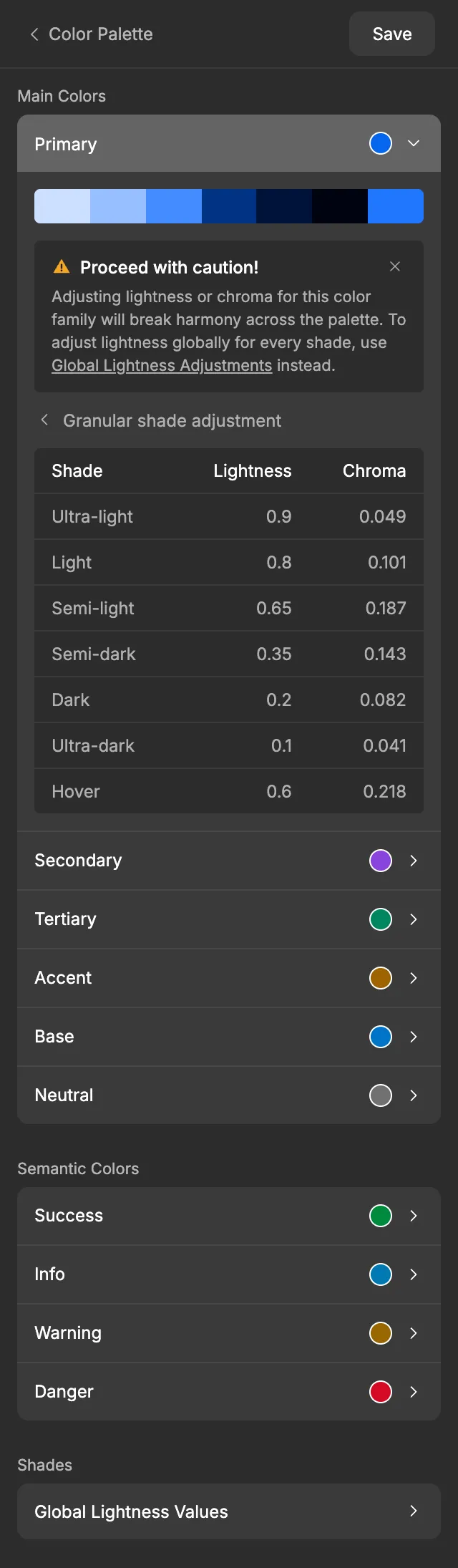
A Proceed with caution! notice reminds you that this breaks the harmony of the palette, and links to the Global Lightness Values table for changes to every family. You can dismiss it like the other notice.
The table lists each shade with its Lightness and Chroma:
- The rows are Ultra-light, Light, Semi-light, Semi-dark, Dark, Ultra-dark and Hover. There’s no Main row: the main color is set with the sliders.
- Lightness runs from 0 to 1 here, so 0.9 means 90 %.
- Chroma accepts values from 0 to 0.5. The table shows the chroma the shade really gets. When that’s lower than the family’s chroma, because the hue can’t be that vivid at the shade’s lightness, hover over the value to see the limit, for example “Limited to 0.049, the highest chroma this hue can show at this lightness”.
Type a new value to change a shade. The cell gets an amber dot; click it to go back to the default value.
Changes here affect this family only. That includes Primary: its granular changes don’t pass on to the other families. If you set the Hover lightness here, it stays fixed and no longer follows the main color plus the hover offset.
To go back, click Granular shade adjustment at the top of the table.
In WordPress
Section titled “In WordPress”When you export to WordPress, a family with its own values is exported exactly as you set it, including any shades you adjusted. If it has its own lightness, the export also switches off ACSS’s unified lightness for its group, so WordPress keeps your value. See Primary sets the tone.
Good to know
Section titled “Good to know”- Manual values don’t follow Primary. If you change Primary later, check the families that have Manual controls on.
- Opening Granular shade adjustment closes the Transparencies view of the same family, and the other way around.
- If you upgraded from an older version of the plugin, some families may already have Manual controls on. See Upgrading.