Forms
Form components
Every form component in the Frames For Figma UI kit, from labels and text inputs to checkboxes, toggles, dropdowns and file uploads, with their properties.
The pages under 📕 Utility components → ↳ Form components hold everything you need to design a form: labels, help text, text fields, choices, dropdowns and file uploads. Each component has its own page with a playground (click the component and try its options in the Design panel) and all its variants.
Before you start
Section titled “Before you start”The form components take their look from the Forms screen of the ACSS plugin for Figma: label, input and help text sizes, padding, borders, corner radius and colors. Set them there and click Save, and every form field in the file follows. Read Style forms for the details.
Properties every form component shares
Section titled “Properties every form component shares”| Property | Options | What it does |
|---|---|---|
| Device | Desktop, Mobile | Uses the Desktop or Mobile sizes, text styles and padding. |
| Style | Light, Dark | Light is for light backgrounds, Dark for dark backgrounds. Each uses its own colors from the plugin’s Forms screen. |
| State | Depends on the component | Shows the field as it looks when focused, filled, checked, disabled or with an error. |
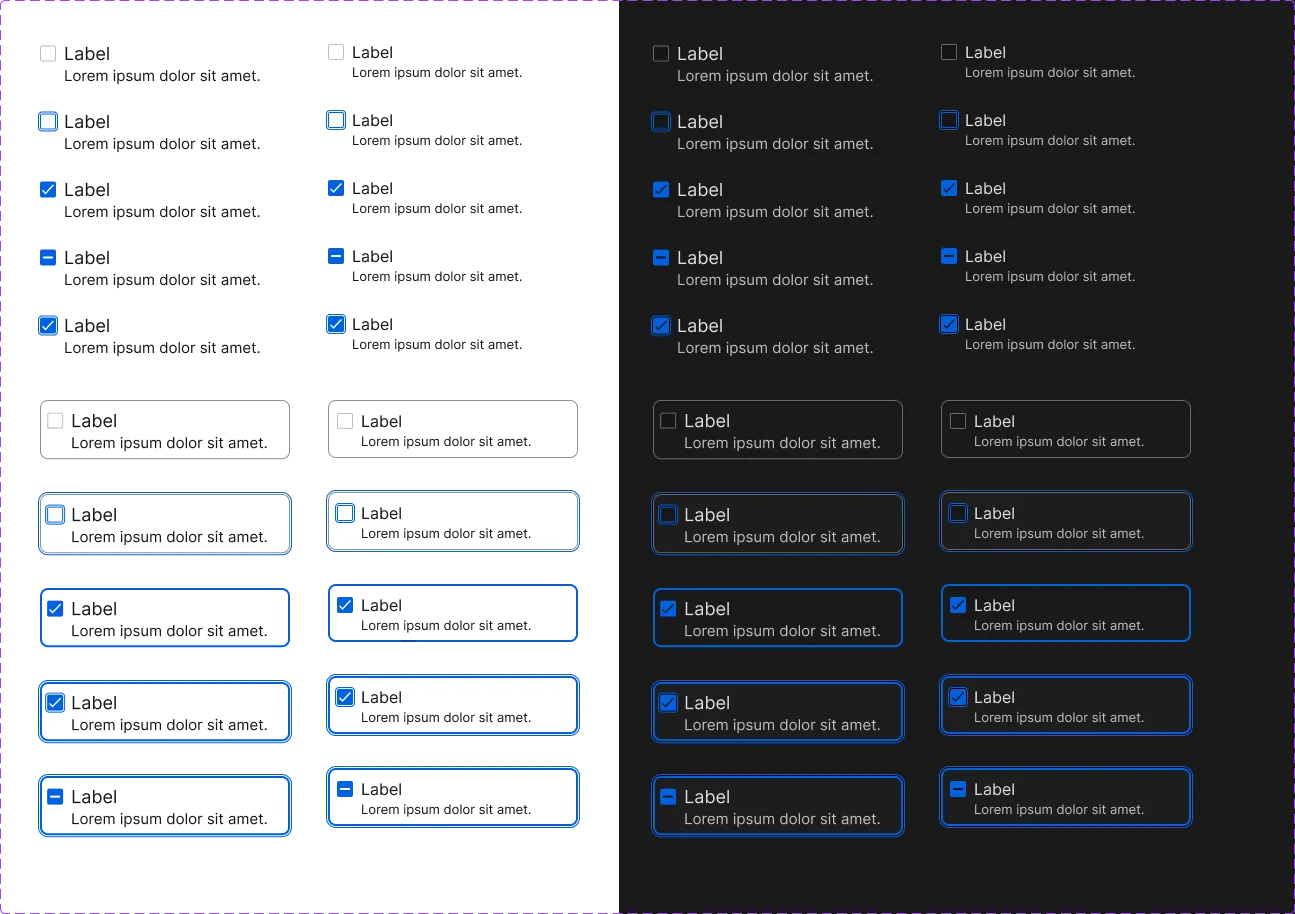
Checkbox, Radio Input and Toggle also come in a Flat style (just the control and its label) and a Boxed style (inside a bordered box), for example Light Boxed.
Labels and help text
Section titled “Labels and help text”| Component | Properties |
|---|---|
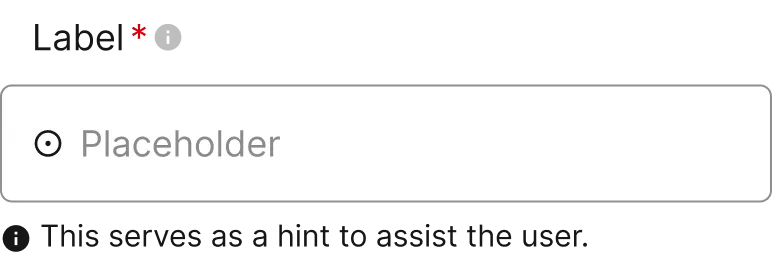
| Label | Label Text; Required shows the asterisk (on by default); Optional shows “(Optional)” (off by default); Tooltip shows an info icon (on by default). |
| Hint Text | The help text shown under a field. Edit its text directly. |
Most fields already include a Label and a Hint Text. Use Show Label and Show Hint Text on the field to hide them.
Text fields
Section titled “Text fields”Text Input is a single-line field. Pick the kind of field in Type:
| Type | Use it for |
|---|---|
| Text, Email, Password | Names, email addresses, passwords |
| Phone | Phone numbers, with a country flag and dialing code in front |
| Card 1 | Card numbers, with card brand icons |
| Card 2 | Card number, expiry date and security code in one field |
| URL | Web addresses, with an https:// prefix |
| Price | Amounts, with a currency symbol and a currency picker with a flag |
| Date, Search | Dates (with a calendar icon) and search fields |
| Clipboard | A link the user can copy, with a copy icon |
| Tag | Adding tags, shown as chips under the field |
| Counter | Numbers, with minus and plus buttons |
State: Default, Focused, Filled, Disabled or Error. The show/hide properties (Show Placeholder, Left Icon, Flag, Card Icon, Phone Prefix, URL Prefix, Price Suffix and others) turn parts of the field on or off; each only applies to the types that have that part. Swap the icons with the properties marked “↳”.
Text Area Input is a multi-line field for messages and comments. WYSIWYG shows a formatting toolbar. State: Default, Focused, Filled or Error.
Dropdown Field is a select field. Set the selected value in Text, show or hide the Lead Icon and the Dropdown Icon, and swap either icon. State: Default, Focused, Filled, Disabled or Error.
Choices
Section titled “Choices”| Component | What it is | Extra properties |
|---|---|---|
| Radio Input | One option from a group, with a label | Description shows a line of text under the label. |
| Checkbox | One or more options, with a label | Description; the Indeterminate state shows a dash, for a “select all” box that’s partly checked. |
| Toggle | An on/off switch, with a label | Description; Position puts the switch on the Left or Right of the label. |
Their State options are Default, Focused, Active (selected) and Active Focused.
Each also has a “button” component with only the control, without a label: Radio Button, Checkbox Button and Toggle Button. Use these when you build your own layout around the control.
File upload
Section titled “File upload”| Component | What it is | Properties |
|---|---|---|
| File Upload | The drag-and-drop area with a Browse files button | State: Default, Focused, Disabled |
| File Upload Card | One file in the upload list | State: In Progress, Success, Error |
| File Type Icon | The file icon on the card | File Type (Image, Document, Audio, Video, Other) and Format (PNG, PDF, MP4…) |
Good to know
Section titled “Good to know”- Need a whole form? Follow Build a form.
- The Light and Dark styles are separate settings in the plugin. In WordPress, ACSS uses one set of form colors and adapts it to the color scheme, so only the Light settings are exported. See Forms.