Plugin screens
Settings
Set the canvas color for every page in your Figma file, and check or deactivate your license for the ACSS plugin for Figma.
The Settings screen holds two things that aren’t design variables: the background color of your Figma canvas, and the status of your license for the ACSS plugin for Figma.
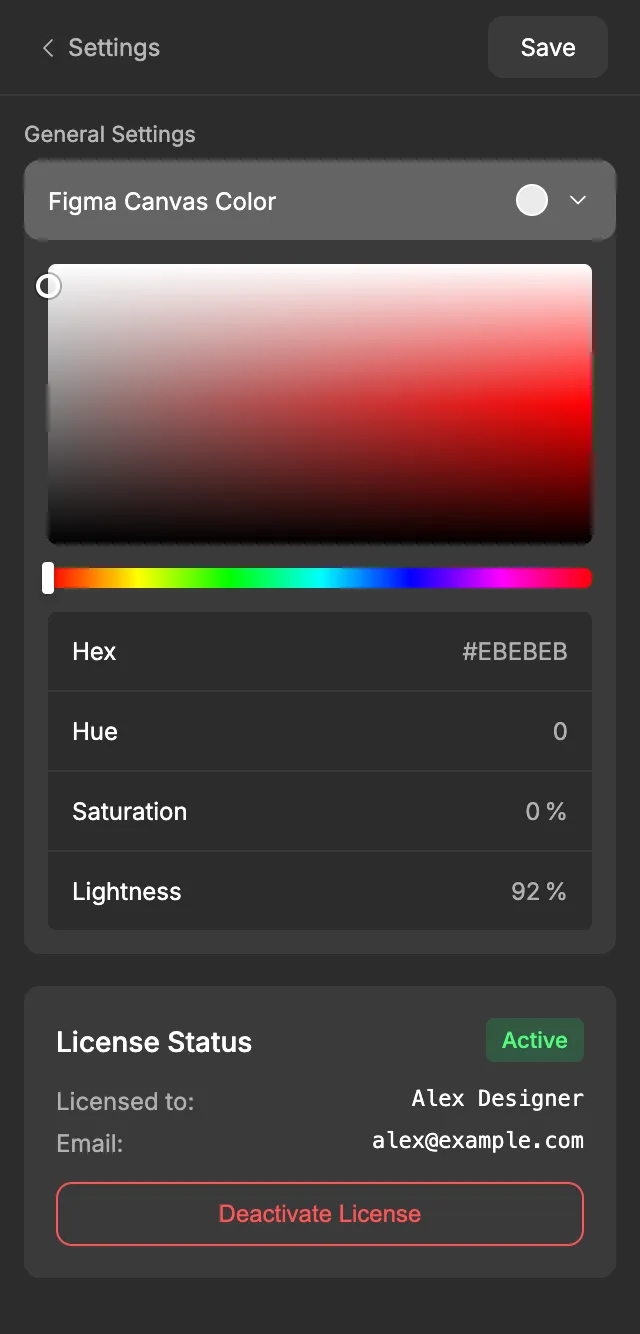
Settings
Section titled “Settings”Figma Canvas Color
Section titled “Figma Canvas Color”The canvas is the gray area around your frames in Figma. Each page in a file has its own canvas color. This setting gives every page in the file the same one, which is handy when you want a calm, consistent background to judge your designs against.
Under General Settings, click Figma Canvas Color to open the color picker. The swatch next to the name shows the current color.
| Control | What it does |
|---|---|
| Color square | Drag the circle to pick how saturated and how light the color is. |
| Hue slider | Drag the handle along the rainbow to pick the hue. |
| Hex | Type a hex color, for example #F5F5F5. |
| Hue | The hue, from 0 to 360. |
| Saturation | How colorful the color is, from 0 to 100 %. |
| Lightness | How light the color is, from 0 % (black) to 100 % (white). |
The picker and the fields stay in sync, so use whichever you prefer. The default is #EBEBEB, a light gray. You choose the canvas color here: the plugin doesn’t start from the color your pages already have.
To apply the color, click Save: the plugin sets it as the background of every page in the file. It also remembers the color for this file, so it’s still there the next time you open the plugin.
License Status
Section titled “License Status”The License Status panel shows the license this copy of the plugin is using.
| Item | What it shows |
|---|---|
| Badge | Active, Expired or Invalid. |
| Licensed to: | The name on the license. |
| Email: | The email address on the license. |
| Expires: | The date the license expires, if it has one. |
Below the details is one button, depending on the status:
- Deactivate License appears when your license is active. Use it when you want to move your license somewhere else. The plugin asks you to confirm: “Are you sure you want to deactivate your license? You will need to re-activate it to continue using the plugin.” After you confirm, the plugin asks for a license key again.
- Clear License Data appears when your license is expired or invalid. Use it when your license shows as invalid but you know it’s fine. After you confirm, the plugin removes the license details it has saved, and you can activate your key again from the start.
To enter or re-enter a license key, see Activate your license.
What gets created in Figma
Section titled “What gets created in Figma”Nothing. Settings doesn’t create variables or styles. When you click Save, the only change from this screen is the background color of your pages.
Good to know
Section titled “Good to know”- The canvas color is only for Figma. It isn’t part of the WordPress export.
- The canvas color is saved per file, so each file can have its own.
- Your license isn’t tied to a file. Once it’s active, the plugin works in every file you open it in.