Plugin screens
Spacing
Set up the ACSS spacing scale, section spacing and contextual gaps as Figma variables for padding and auto layout gaps.
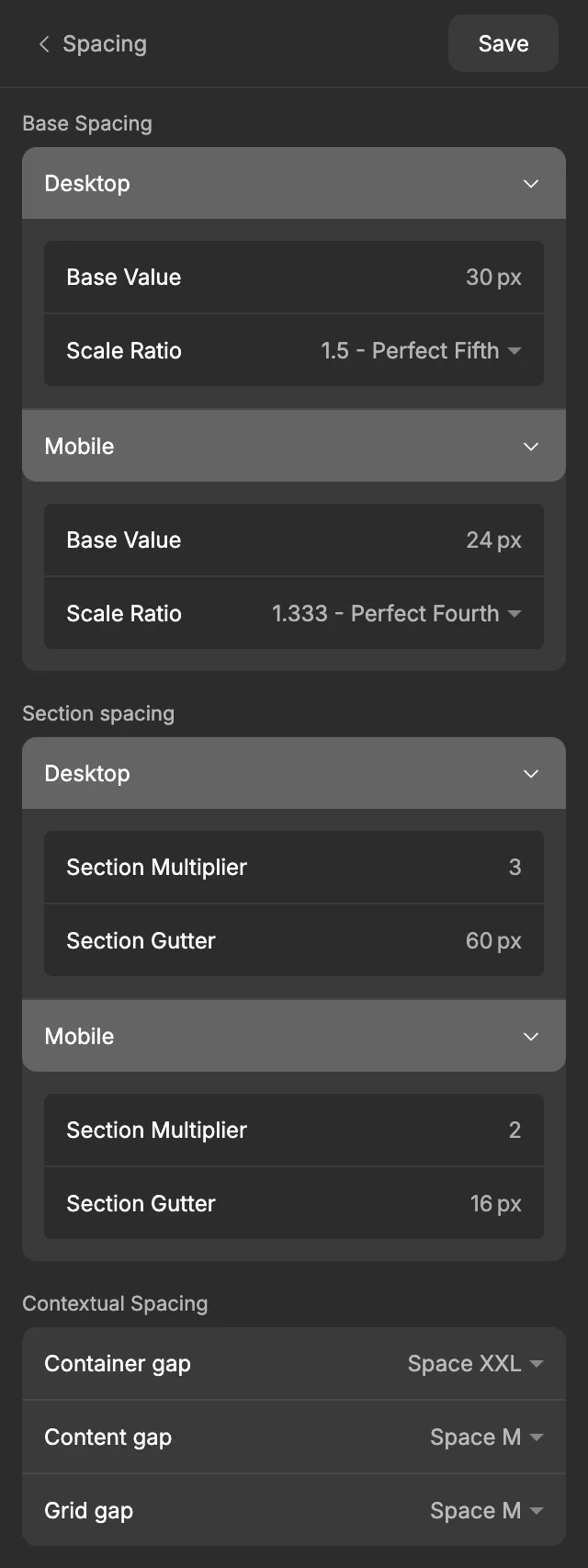
The Spacing screen of the ACSS plugin for Figma turns one base size and a ratio into a full spacing scale, from Space XS to Space XXL. It also sets the larger spacing for page sections and three named gaps for common layouts. Use these variables for padding and auto layout gaps, and your spacing stays consistent across the whole design.
Before you start
Section titled “Before you start”Spacing doesn’t depend on any other screen. The Layout screen uses the Section Gutter from here to work out the full website width, so set the gutter before you rely on those width variables.
Settings
Section titled “Settings”Most settings come in a Desktop and a Mobile version. Desktop is the value for large screens and Mobile for small ones. See Desktop and mobile values for how the two work together.
Base Spacing
Section titled “Base Spacing”| Setting | Desktop default | Mobile default | What it does |
|---|---|---|---|
| Base Value | 30 px | 24 px | The size of Space M, the middle of the scale. |
| Scale Ratio | 1.5 - Perfect Fifth | 1.333 - Perfect Fourth | How much each step grows. A bigger ratio gives more contrast between small and large spaces. |
Every other step is worked out from these two numbers. Each step up multiplies by the ratio, and each step down divides by it:
| Step | Formula | Desktop default | Mobile default |
|---|---|---|---|
| Space XS | Base ÷ ratio ÷ ratio | 13.33 | 13.51 |
| Space S | Base ÷ ratio | 20 | 18 |
| Space M | Base | 30 | 24 |
| Space L | Base × ratio | 45 | 31.99 |
| Space XL | Base × ratio × ratio | 67.5 | 42.65 |
| Space XXL | Base × ratio × ratio × ratio | 101.25 | 56.85 |
Section spacing
Section titled “Section spacing”Sections are the large horizontal bands of a page, like a hero or a features block. They need much more room than the elements inside them.
| Setting | Desktop default | Mobile default | What it does |
|---|---|---|---|
| Section Multiplier | 3 | 2 | Multiplies the Base Value to get Section Space M. With the defaults that’s 30 × 3 = 90 on desktop and 24 × 2 = 48 on mobile. The other section steps follow the same Scale Ratio. |
| Section Gutter | 60 px | 16 px | The space on the left and right of a section, between the content and the edge of the screen. |
Contextual Spacing
Section titled “Contextual Spacing”Contextual gaps are named shortcuts to one step of your scale, so you can pick “the gap between content elements” instead of remembering which size that is.
| Setting | Default | Use it for |
|---|---|---|
| Container gap | Space XXL | The gap between large blocks inside a section, for example a heading area and a card grid. |
| Content gap | Space M | The gap between content elements, for example a heading, a paragraph and a button. |
| Grid gap | Space M | The gap between items in a grid, for example cards. |
Each one can be set to any step from Space XS to Space XXL. The mobile version automatically uses the same step from the mobile scale.
When you’re done, click Save. See Saving and auto-save for what Save does.
What gets created in Figma
Section titled “What gets created in Figma”Everything goes into the Spacing collection. Desktop variables are in a Desktop group and start with D, mobile variables are in a Mobile group and start with M.
| Variable | Code syntax | What it’s for |
|---|---|---|
Desktop/D Space XS … Desktop/D Space XXL |
var(--space-xs) … var(--space-xxl) |
Padding and gaps on desktop designs. |
Mobile/M Space XS … Mobile/M Space XXL |
var(--space-xs) … var(--space-xxl) |
Padding and gaps on mobile designs. |
Desktop/D Section Space XS … XXL and Mobile/M Section Space XS … XXL |
var(--section-xs) … var(--section-xxl) |
Top and bottom padding of page sections. |
Desktop/D Section Gutter |
var(--d-section-gutter) |
Left and right padding of sections on desktop. |
Mobile/M Section Gutter |
var(--m-section-gutter) |
Left and right padding of sections on mobile. |
Desktop/D Container Gap, D Content Gap, D Grid Gap (and M versions) |
none | The contextual gaps. Each one points to the Space variable you picked. |
The plugin also stores your Base Value, Scale Ratio and Section Multiplier as variables (for example Desktop Base Spacing Value), so you can see the settings behind the scale. They aren’t meant to be applied to layers.
Apart from the gutters, desktop and mobile versions share the same code syntax. A developer sees var(--space-m) in Dev Mode whichever version you used, because in ACSS it’s one fluid value that moves between the mobile and desktop sizes.
Using it in your designs
Section titled “Using it in your designs”Spacing variables only appear where spacing makes sense: auto layout gaps and padding, and paragraph spacing on text layers.
- Select a frame that uses auto layout.
- In the right sidebar, hover over a gap or padding field and click the variable icon.
- Pick a variable, for example
Desktop/D Space Min a desktop design orMobile/M Space Min a mobile one.
Use the Section Space variables for the top and bottom padding of page sections, and the Section Gutter for their left and right padding.
In WordPress
Section titled “In WordPress”When you export to WordPress, your spacing settings become the ACSS spacing settings. Desktop values set the size on large screens and mobile values the size on small screens, and ACSS scales smoothly between the two. The export includes the Base Value, Scale Ratio, Section Multiplier, Section Gutter (the ACSS gutter) and the three contextual gaps.
Learn more in the ACSS spacing docs.
Good to know
Section titled “Good to know”- The values aren’t rounded, so you may see numbers like 13.33 in Figma. That’s expected.
- If you rename a spacing variable in Figma, the next Save creates a new one with the original name, and the renamed one stops updating. Keep the plugin’s names.
- Changing a setting does nothing in Figma until you click Save. Layers that already use a spacing variable update automatically when you do.