UI kit
Website templates
Build website pages in Figma from the Frames For Figma UI kit's ready-made sections, and switch their layout, device and options in the Design panel.
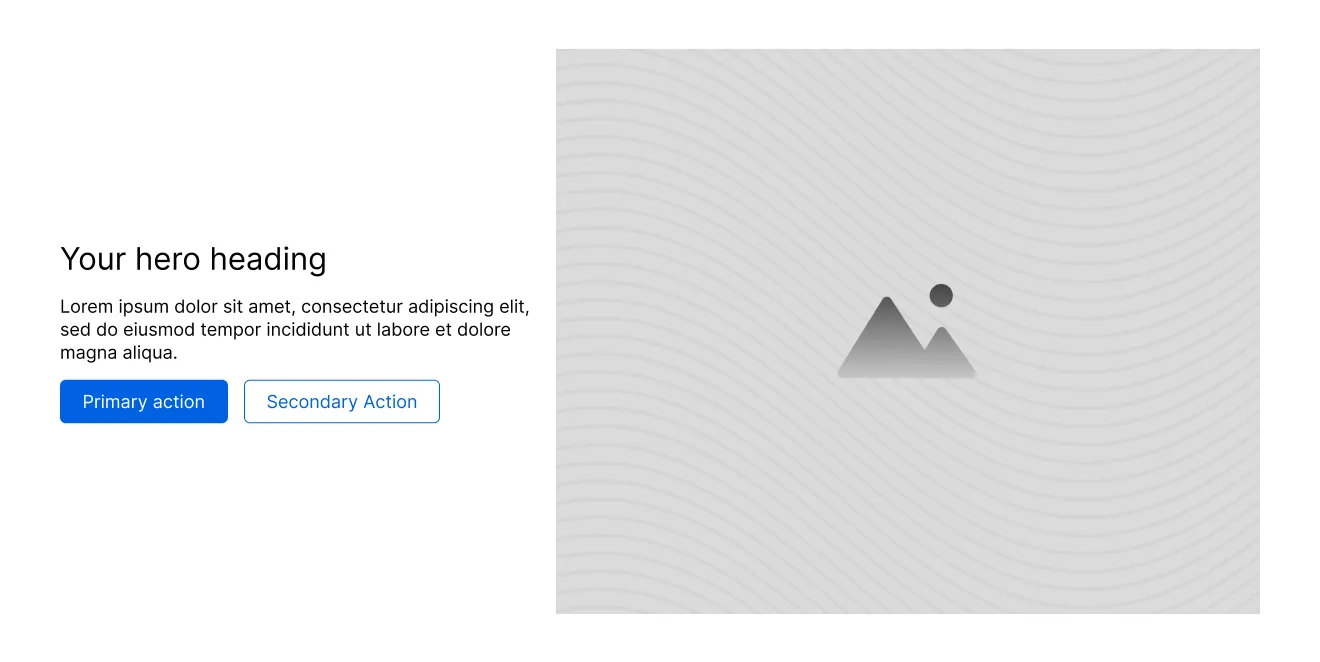
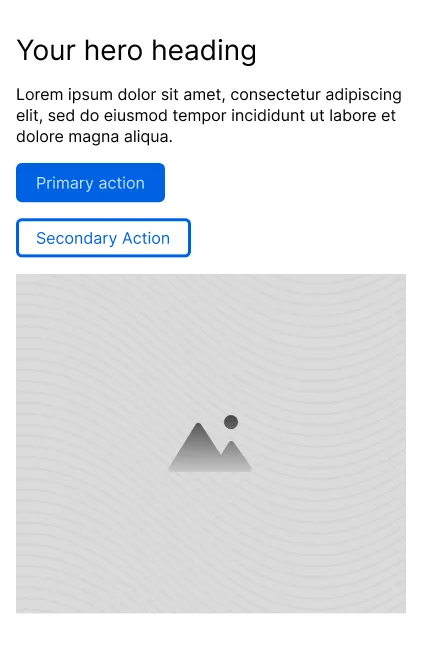
The 📙 Website templates pages hold the Frames section library: 46 categories, from headers and heroes to pricing tables, FAQs and footers, each with several layouts. Instead of designing every section from scratch, you place a template, pick a layout and replace the sample content. Because the templates use your variables, they already match your colors, type and spacing.
Find a template
Section titled “Find a template”Each category has its own page, marked with “↳” under 📙 Website templates: ↳ Headers, ↳ Hero Sections, ↳ Features, ↳ Pricing, ↳ Footers and so on. Browse a page to see every layout in that category.
You can also find templates in the Assets panel: open Assets, then search for a name such as “Hero” or “Pricing”.
Add a template to your page
Section titled “Add a template to your page”-
Open the page where you design, for example 📗 Website design → ↳ Wireframe.
-
In the Assets panel, find the template, for example Hero, and drag it onto your page. You get an instance of the component.
-
With the instance selected, pick a layout in the Design panel: change Type, for example from Hero Alpha to Hero Golf.
-
Set Device to Desktop or Mobile.
To build a whole page, place a frame as wide as your website (1320 px for Desktop, 422 px for Mobile, matching D Website Width and M Website Width), give it a vertical auto layout with no gap, and stack sections inside it: a header, a hero, a few content sections and a footer.
Template properties
Section titled “Template properties”Select a template and look at the Design panel. These are the properties you’ll see most:
| Property | What it does |
|---|---|
| Type | Picks the layout within the category, such as Hero Alpha or Hero Bravo. |
| Device | Switches between the Desktop and Mobile versions. |
| Reverse order | Flips the layout, for example puts the image on the left instead of the right. Content sections and some cards have it. |
| Show 2nd row, Show 3rd row… | Adds or removes rows of cards in grids. |
| State | Shows a hover or active state on cards and buttons that have one. |
Every template’s description, in the Design panel and in the Assets panel, says which of these it has.
Sections, grids and cards
Section titled “Sections, grids and cards”Each category comes in up to three sizes, which fit inside each other:
- Sections are complete, full-width parts of a page, such as Feature Section Alpha. Start with these.
- Grids, such as Feature Grid Alpha, are the groups of cards inside a section. Use one on its own to put the same cards into a different section.
- Cards, such as Feature Card Alpha, are a single item.
The names use a code word from the NATO alphabet (Alpha, Bravo, Charlie…). A section, its grid and its card share the code word, so Feature Section Alpha is built from Feature Grid Alpha and Feature Card Alpha.
Replace the sample content
Section titled “Replace the sample content”- Text: double-click a text layer and type. The text keeps its text style, so it follows your Typography settings.
- Images: images sit in Aspect Ratio components. Select the BG Image layer and replace its image fill.
- Buttons and links: change the label, and the color or style in the button’s properties. See Buttons and links.
- Logo, menu and business details: these come from the Identity and Navigation pages. Change them there, not in each header.
Good to know
Section titled “Good to know”- Don’t detach templates unless you need to change their structure. Detached layers stop updating when the template is improved, but they still follow your variables.
- To mock up a full page quickly, use the Sitebuilder: one component that holds every category.
- Put your own sections and components on the ↳ Custom components page, the last page in the 📙 Website templates group.