UI kit
Style guide pages
The style guide pages in the Frames For Figma UI kit preview your colors, type, spacing, widths, shadows and corner radius, and update every time you click Save in the plugin.
The pages in the 📒 Style Guide & Documentation group show your design system at a glance: every color, text size, spacing step, width, shadow and corner radius that the ACSS plugin for Figma creates. They update by themselves each time you click Save in the plugin, so you can check a change right after you make it. They’re also a handy page to share with a client or a developer.
You don’t edit anything on these pages. To change a value, open the plugin, change the setting and click Save.
Colors
Section titled “Colors”The ↳ Colors page has two previews:
- Available Color Palette shows the ten color families, each with its main color, six shades (Ultra-light to Ultra-dark) and its hover color.
- Color Assignments shows the background colors and text colors that sections and text use.
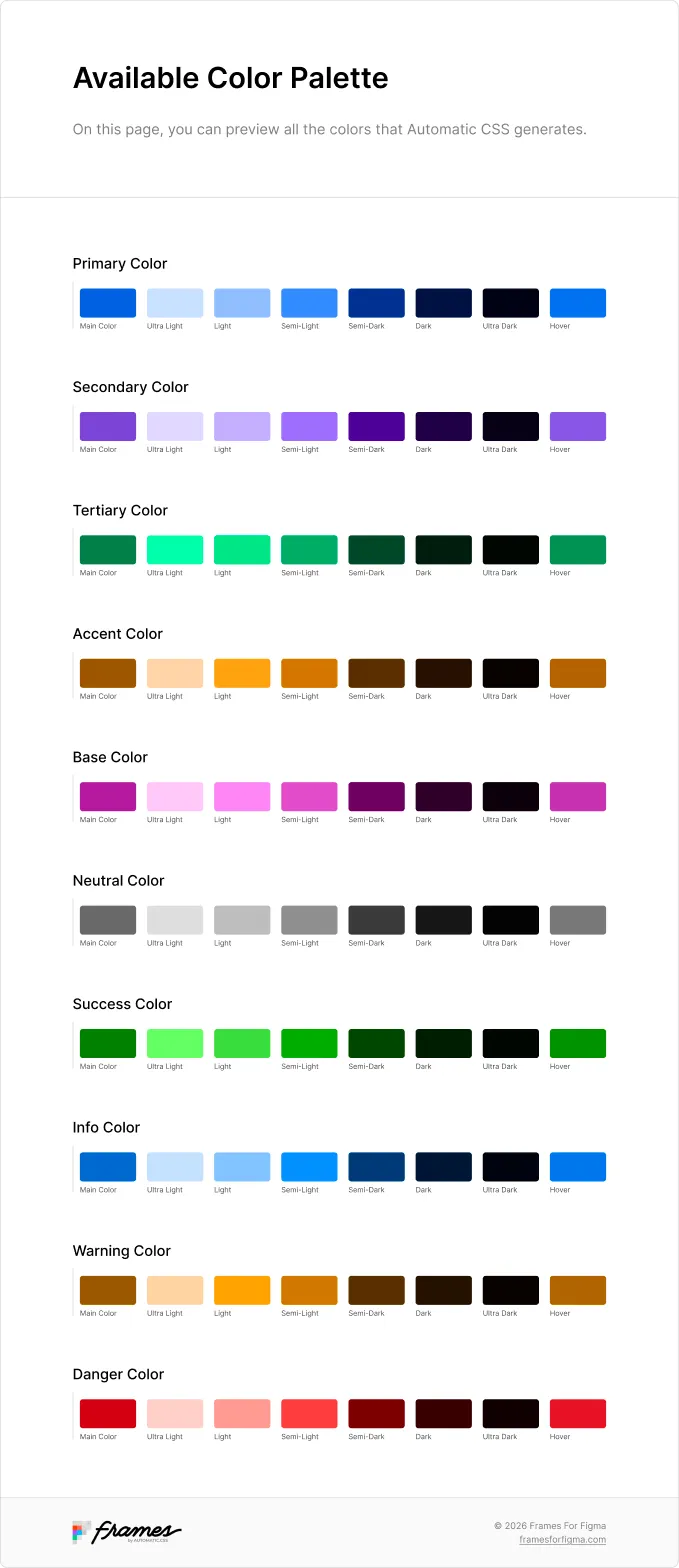
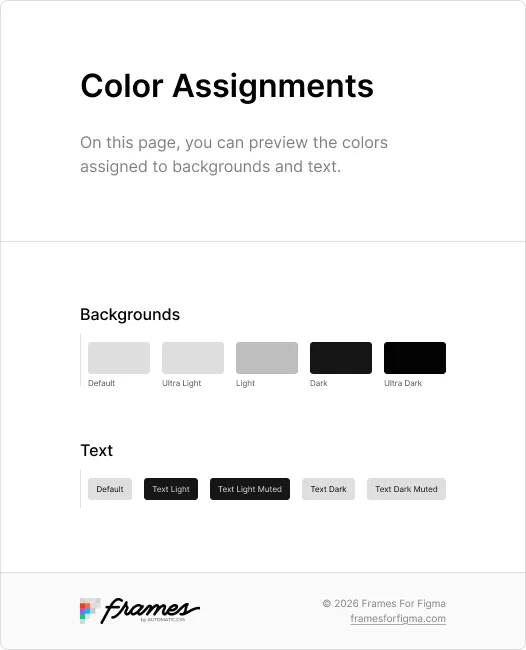
The palette comes from the Color Palette screen, and the assignments from Backgrounds & Text.
Typography
Section titled “Typography”The ↳ Typography page shows your heading font with the six heading sizes (H6 to H1) and your body font with the six text sizes (Text XS to Text XXL), each for Desktop and Mobile. Use headings for titles and the text sizes for everything else.
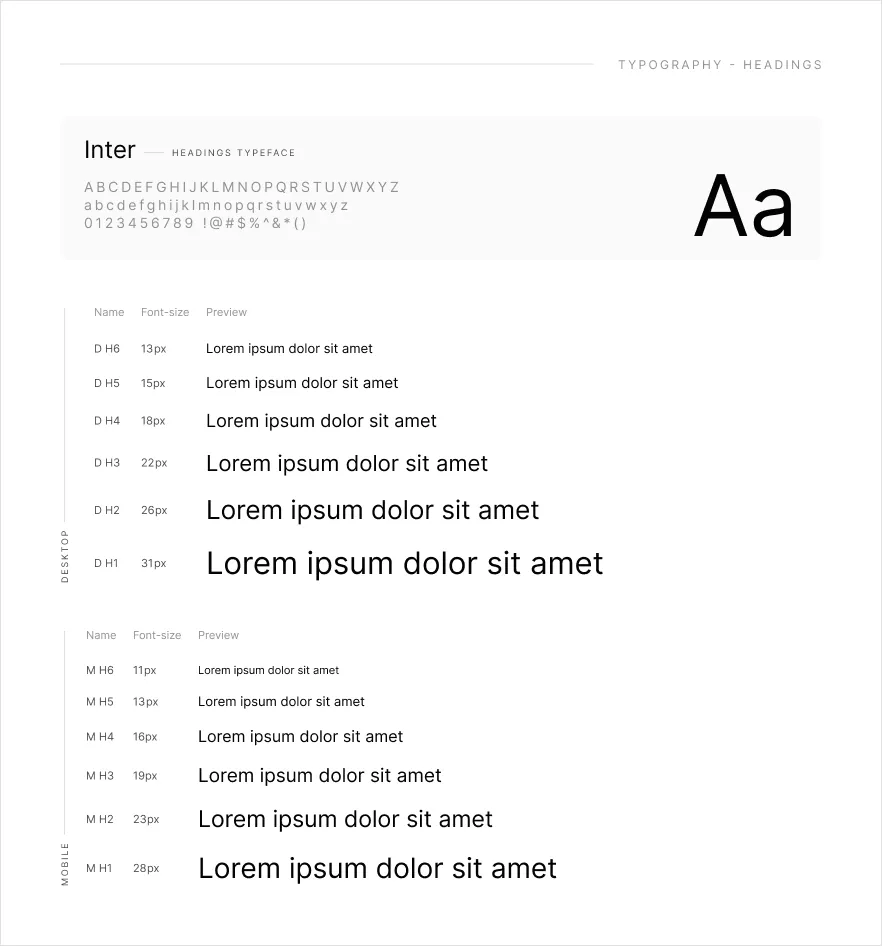
Change fonts and sizes on the Typography screen. Scales and ratios explains how one base size and a scale ratio produce all six sizes.
Spacing
Section titled “Spacing”The ↳ Spacing page shows the standard spacing (Space XS to XXL) for gaps inside components, and the section spacing (Section Space XS to XXL, plus the section gutter) for the padding around sections.
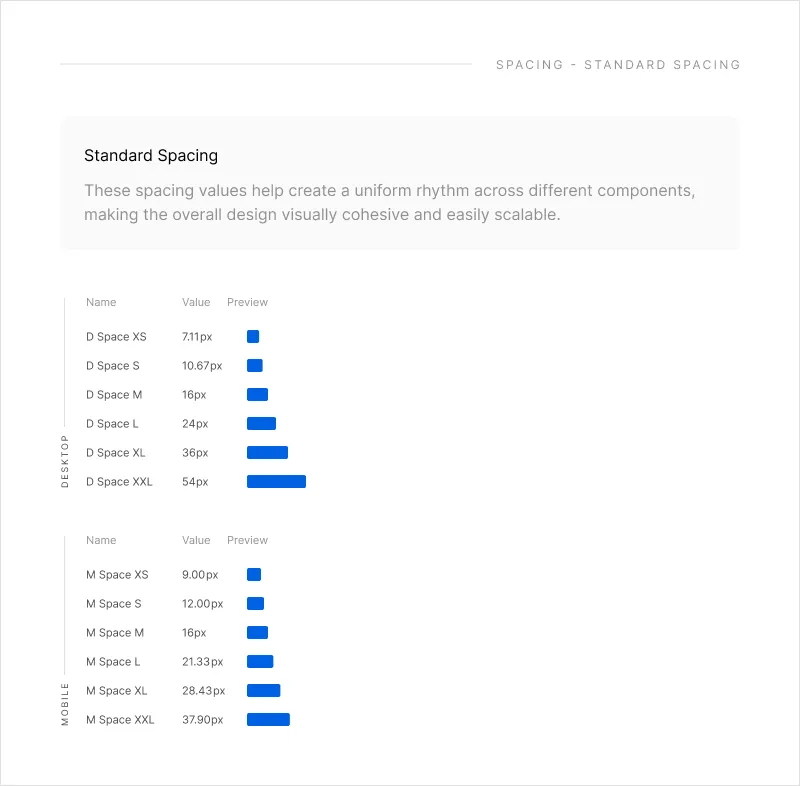
The kit also uses three contextual gaps that follow the standard spacing: Content Gap, Grid Gap and Container Gap. Change all of these on the Spacing screen.
Widths
Section titled “Widths”The ↳ Widths page shows how wide content can get: Width 10 to Width 90 (10 % to 90 % of the content width), the content width itself and the website width.
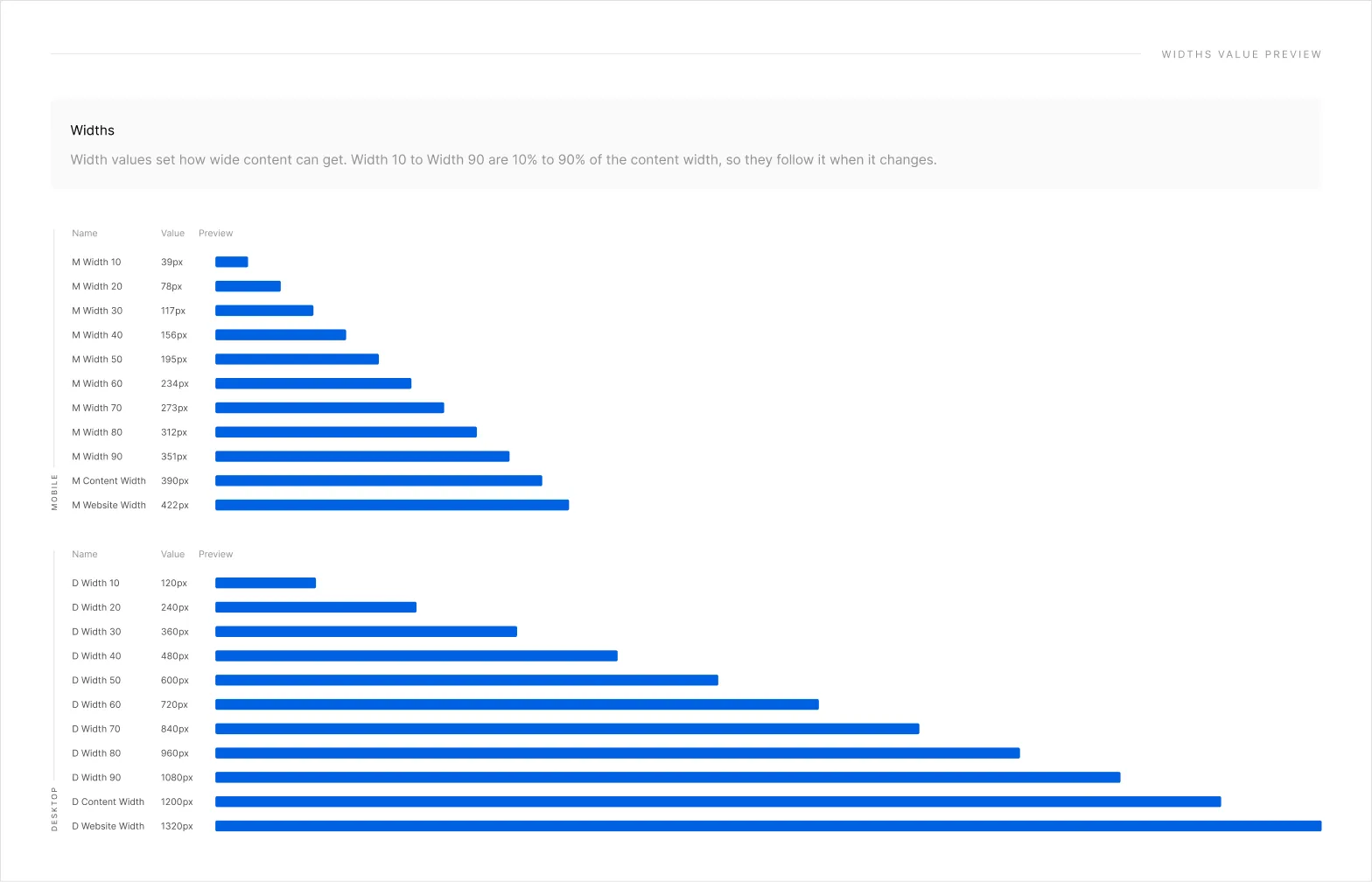
Width 10 to 90 follow the content width, so changing the content width on the Layout screen changes them all.
Shadows
Section titled “Shadows”The ↳ Shadows page shows the three shadows, Shadow S, Shadow M and Shadow L. They’re effect styles you can apply to any layer.
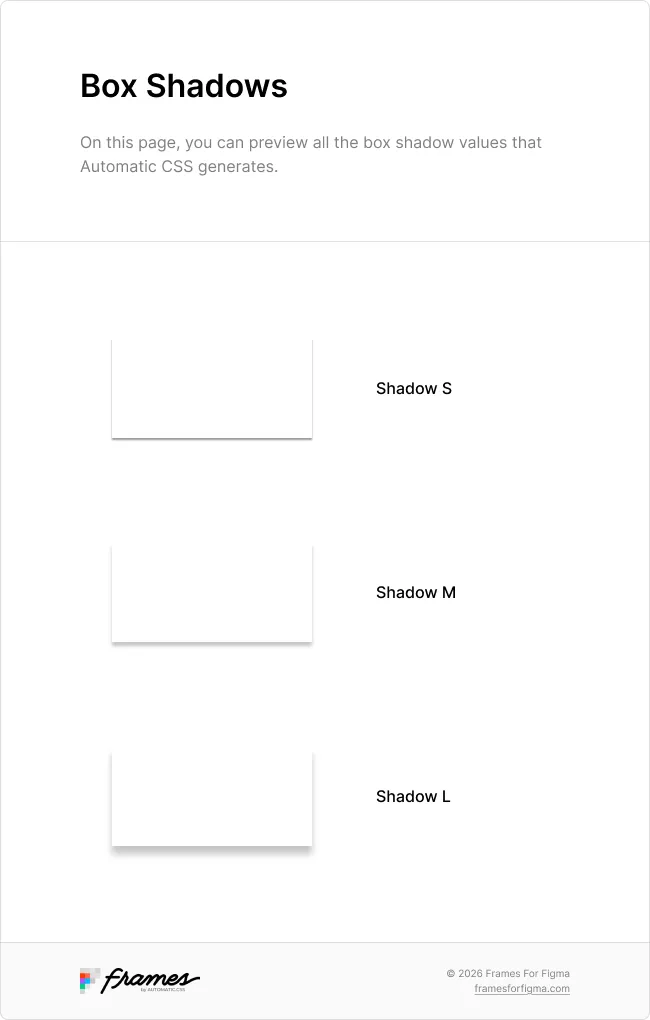
Change them on the Shadows screen.
Border radius
Section titled “Border radius”The ↳ Border Radius page shows the global border radius and the radius scale from Radius XS to Radius XXL.
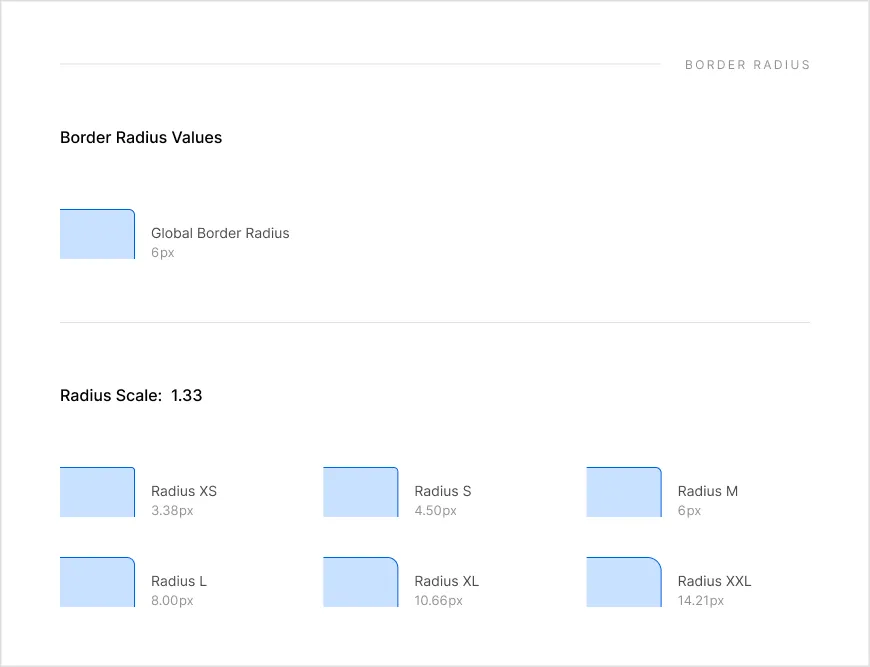
Change them on the Borders screen. Radius 50% isn’t shown here; use it for round shapes like avatars and pills.
Good to know
Section titled “Good to know”- The values on these pages are linked to the variables, so they always show your current settings. If one looks out of date, click Save in the plugin.
- Every name on these pages matches a variable in the plugin. Look them up in All variables and styles.