Project fundamentals
Navigation
Set your website's main menu once on the Navigation page of the Frames For Figma UI kit, and every header and footer template uses it.
The ↳ Navigation page (in 📘 Project Fundamentals) holds your website’s main menu. Every header template, every footer template and a few other sections use this one menu, so you set your menu items here once instead of editing each header.
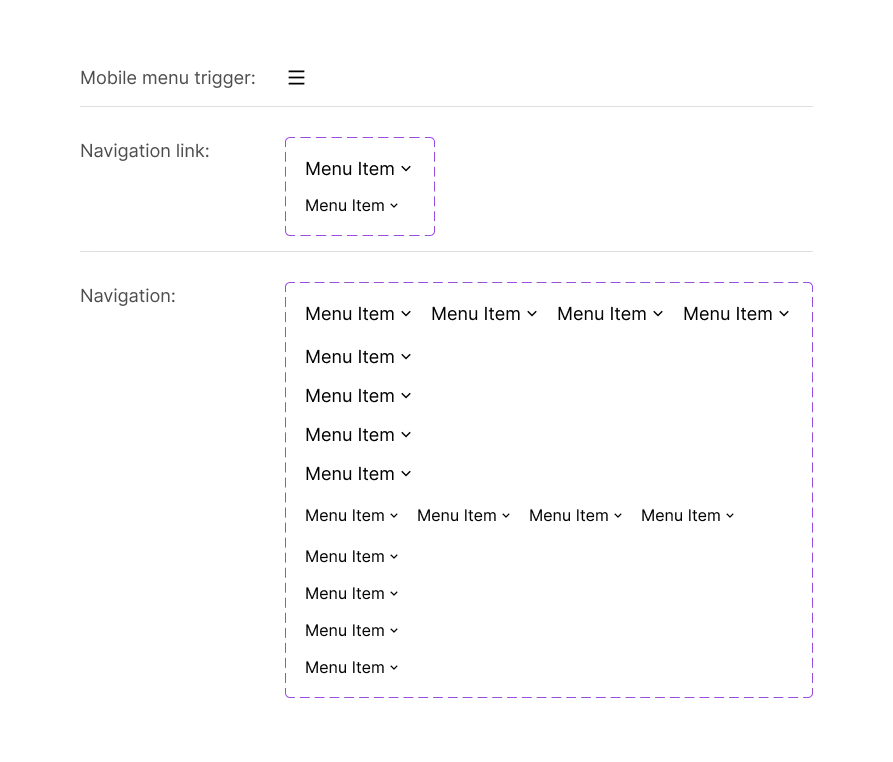
What’s on the page
Section titled “What’s on the page”The page has three components, from small to large:
| Component | What it is | Where it’s used |
|---|---|---|
| Mobile Menu Trigger | The menu icon (“hamburger”) | The Mobile variants of the header templates |
| Nav link | One menu item, with an optional dropdown arrow. Variants: Desktop and Mobile | Inside the Navigation component |
| Navigation | The full menu, made of Nav links. Variants: Desktop or Mobile, Horizontal or Vertical | Headers, footers and other sections |
Change one of these, and every template that uses it changes too:
- Swap the menu icon in the Mobile Menu Trigger, and every mobile header shows the new icon.
- Style the Nav link once, for example make its text bold or change its color, and every menu item in every menu follows. You don’t have to select menu items one by one.
- Add, remove or rename items in the Navigation component, and every header and footer gets the same menu.
The Nav link has a Dropdown property that shows or hides the arrow, for menu items that open a submenu.
Rename menu items
Section titled “Rename menu items”Double-click a menu item inside the Navigation component on this page and type the new name. Do it in each of the four variants (Desktop and Mobile, Horizontal and Vertical) that your design uses.
Add menu items
Section titled “Add menu items”-
On the Navigation page, select a Nav link inside the Navigation component. Any of the four variants works.
-
To change all four variants at once, right-click and choose Select matching layers (Cmd+Option+A on a Mac, Ctrl+Alt+A on Windows). This selects the same Nav link in every variant.
-
Press Cmd+D on a Mac or Ctrl+D on Windows to duplicate the menu item. Repeat for as many items as you need.
Remove menu items
Section titled “Remove menu items”Select the menu items the same way as when adding them, then press Delete or Backspace.
Good to know
Section titled “Good to know”- A header or footer only follows the Navigation page as long as you haven’t changed its menu directly. If you renamed items inside one header on another page, that header keeps your changes. Right-click its navigation and choose Reset all changes to make it follow the Navigation page again.
- Menu items use the
Text/D Text Mtext style (Text/M Text Mon Mobile) and the text colorText/Text Color, so they follow your Typography settings. - Your logo and business details live on the Identity page, next to this one.