Utility components
Buttons and links
Use and style the Button and Link components of the Frames For Figma UI kit, in every palette color, with outline, light and dark variations and three sizes.
The ↳ Button and ↳ Link pages (in 📕 Utility components) hold the kit’s buttons and text links. Every button in the templates is one of these, so styling them here, or in the plugin, restyles every button in the file.

Before you start
Section titled “Before you start”Most of a button’s look comes from the Buttons & Links screen of the ACSS plugin for Figma: padding, minimum width, border width, corner radius and the button text styles. Colors come from your Color Palette. Change them there and click Save to restyle every button at once.
The Button component
Section titled “The Button component”Pick the look of a button with four properties:
| Property | Options | What it does |
|---|---|---|
| Color | Primary, Secondary, Tertiary, Accent, Base, Neutral, Success, Warning, Danger, Info | The color family. |
| Outline | No, Yes | Yes gives a transparent button with a colored border and text. |
| Variation | Default, Light, Dark | Default uses the family’s main color, Light its ultra-light shade with dark text, Dark its dark shade. |
| State | Default, Hovered, Focused | Shows the hover color or the focus ring. |
That’s 180 combinations, all shown under Component variations on the Button page.
Size, icons and text
Section titled “Size, icons and text”Size, icons and text live in a nested component called Base button settings. Select a button and you’ll find its properties in the Design panel, under the button’s own:
| Property | What it does |
|---|---|
| Size | S, M or L. Each size has its own padding and text style. |
| Device | Desktop or Mobile sizes. |
| Show Text and ↳ Text | Show or hide the label, and edit it. Turn the text off for an icon-only button. |
| Left icon, Right icon | Show an icon before or after the label (off by default). |
| ↳ L icon swap, ↳ R icon swap | Pick the icons. |
Restyle every button
Section titled “Restyle every button”To change something the plugin doesn’t control, for example the button font weight or letter case, edit the Base button settings component on the Button page. Every size, color and variation is built from it, so the change reaches every button in the file. To change the text size, use the button text styles (Buttons/D Btn Text M and the others) or the Buttons & Links screen.
The Link component
Section titled “The Link component”A text link with an optional arrow on either side.
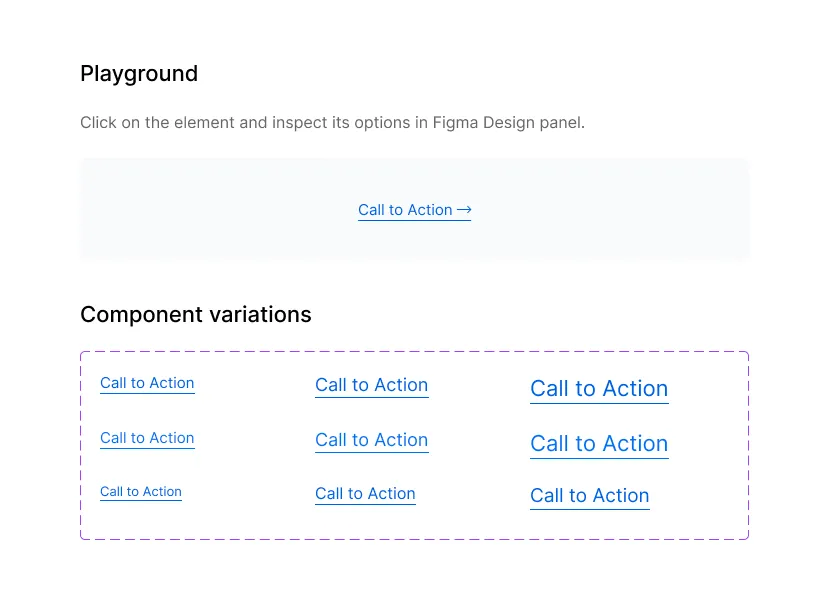
| Property | Options | What it does |
|---|---|---|
| Size | S, M, L | The text size. |
| Device | Desktop, Mobile | Desktop or Mobile text sizes. |
| State | Default, Hover | Shows the hover style. |
| Link Text | Text | The label. |
| Underline | On, off | Underlines the link (on by default). |
| Left Arrow, Right Arrow | On, off | Shows an arrow before or after the label (off by default). |
The link font weight comes from the Buttons & Links screen.
Good to know
Section titled “Good to know”- On a dark section, use the Dark variation or an outline button in a light color, so the button stays readable.
- In WordPress, ACSS builds buttons from the same settings. See Button styling in the ACSS docs.