Getting started
Installation
Download the Frames For Figma UI kit, import it into Figma, and run the ACSS plugin for Figma for the first time.
Getting set up takes a few minutes. You import the UI kit file into Figma, then open the ACSS plugin for Figma in a design file. Have your purchase confirmation email at hand: it has both your download and your license key.
Get the UI kit
Section titled “Get the UI kit”The UI kit is a Figma file (a .fig file) that you download and then import into your Figma account.
-
Open your purchase confirmation email and download the Frames For Figma
.figfile. You can also download it again at any time from your customer portal. -
Open Figma and go to the file browser, the screen that lists your files.
-
Drag the
.figfile into the file browser window. Or open the Create new menu, choose Import, then Import from computer, and pick the file. -
Open the imported file. Figma puts it in your drafts. Move it to a team project if your team should work in it too.
Importing a large file can take a minute. Once it’s open, you’re ready to add the plugin.
Open the plugin
Section titled “Open the plugin”The ACSS plugin for Figma is published on Figma Community. There’s nothing to install: you run it from inside a Figma design file.
From the Figma Community page
Section titled “From the Figma Community page”-
Open the plugin’s page on Figma Community.
-
Click Open in.
-
Pick the file you want to use it in, for example the UI kit you just imported. Figma opens the file and runs the plugin.
From inside a file
Section titled “From inside a file”-
Open a Figma design file that you can edit.
-
Click the Tools tab in the navigation bar on the left side of the file.
-
Search for “ACSS plugin for Figma”, click it, and then click Run.
Once you’ve used the plugin, it shows up in your recent plugins. To run it again quickly, press Cmd+Option+P on a Mac or Ctrl+Alt+P on Windows. This shortcut runs the last plugin you used.
The first time you run the plugin, it asks for your license key. Follow Activate your license, then come back here.
The plugin window
Section titled “The plugin window”The plugin opens in a small window, 320 × 500 px, on top of your design. It follows Figma’s light or dark theme. Drag the window by its title bar to move it out of the way, and close it with the × in the title bar.
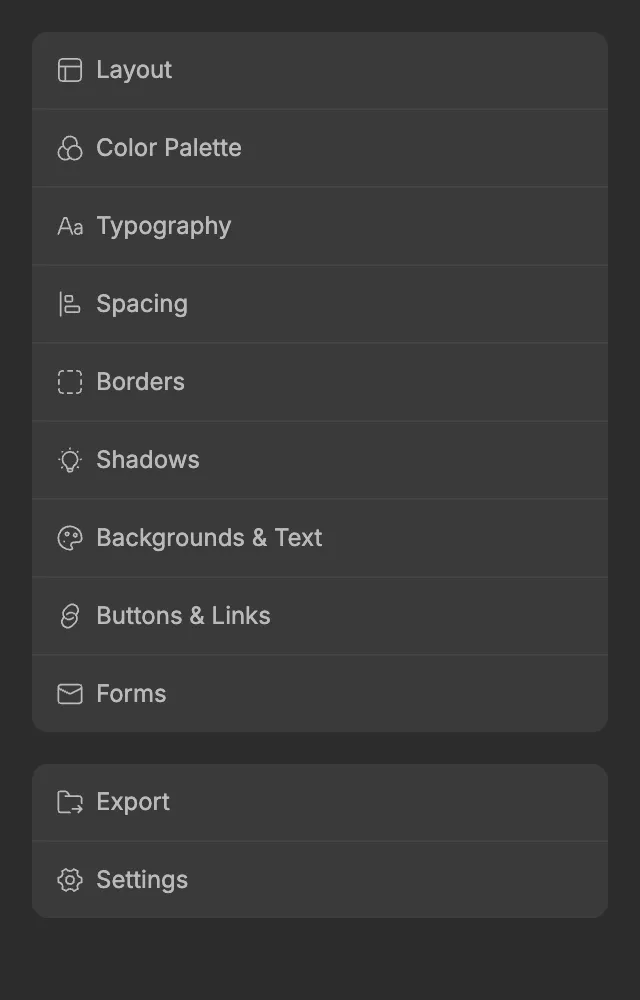
The home menu lists the plugin’s screens in two groups:
- The first group sets up your design system: Layout, Color Palette, Typography, Spacing, Borders, Shadows, Backgrounds & Text, Buttons & Links and Forms.
- The second group has Export, to send your settings to WordPress, and Settings, for the Figma canvas color and your license.
Click a screen to open it. Typography first asks whether you want Headings or Text, and Buttons & Links asks for Buttons or Links.
Every screen has a back arrow with the screen’s name at the top left, which takes you back, and every screen except Export has a Save button at the top right. Save writes the settings from all screens to your Figma file at once. Until you click it, nothing changes in Figma. Read more in Saving and auto-save.
Next steps
Section titled “Next steps”- Activate your license
- Follow the plugin quick start to set up your first design system in about ten minutes.