Plugin screens
Layout
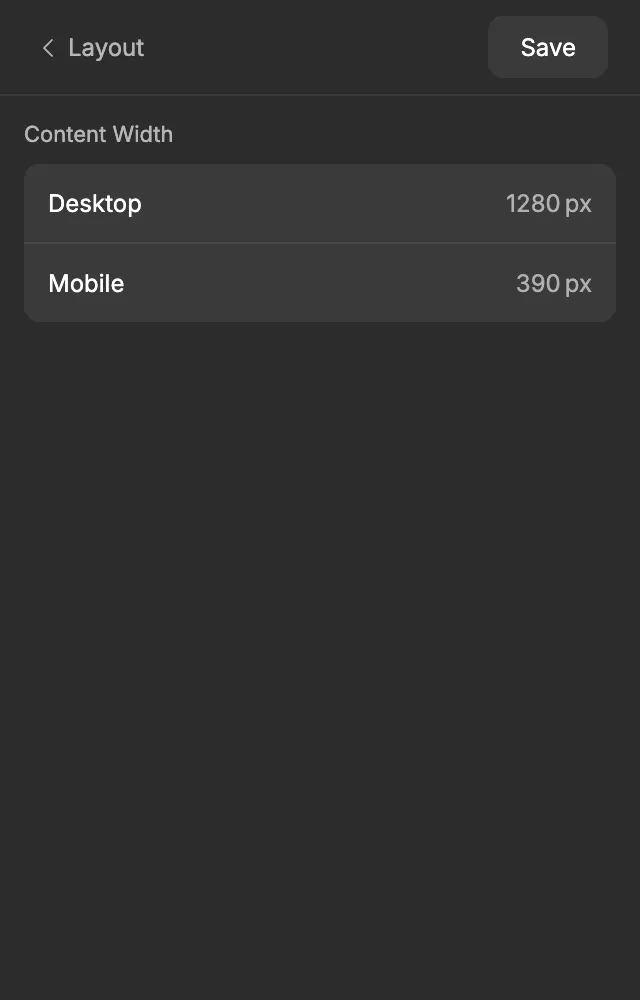
Set your desktop and mobile content width and get ACSS width variables for content containers, columns and page frames in Figma.
The Layout screen sets how wide your content gets on desktop and on mobile. From those two numbers the ACSS plugin for Figma creates variables for your content container, a scale of partial widths from 10 % to 90 %, and the full website width. Use them for frame widths, and your layouts line up with the same widths the site uses.
Before you start
Section titled “Before you start”The content width doesn’t depend on other settings. The Website Width variables add the Section Gutter from the Spacing screen on both sides, so set your gutters there if you plan to use them.
Settings
Section titled “Settings”The screen has one section, Content Width, with a value for each device. See Desktop and mobile values for how the two work together.
| Setting | Default | What it does |
|---|---|---|
| Desktop | 1280 px | The widest your content gets on large screens. Text, cards and grids stay inside this width, however wide the screen is. |
| Mobile | 390 px | The content width in mobile designs. |
The content width is the width of the content itself, without the space on the left and right of a section. That space is the Section Gutter on the Spacing screen.
When you’re done, click Save. See Saving and auto-save for what Save does.
What gets created in Figma
Section titled “What gets created in Figma”Everything goes into the Layout collection. Desktop variables start with D and mobile variables with M.
| Variable | Code syntax | What it’s for |
|---|---|---|
D Content Width, M Content Width |
var(--content-width) |
The width (or max width) of the container that holds a section’s content. |
D Width 10 … D Width 90 |
var(--width-10) … var(--width-90) |
Part of the desktop content width, from 10 % to 90 %. Use them for columns, text blocks and media that shouldn’t span the full content width. |
M Width 10 … M Width 90 |
var(--width-10) … var(--width-90) |
The same scale, based on the mobile content width. |
D Website Width, M Website Width |
none | The content width plus the Section Gutter on both sides. With the defaults that’s 1280 + 2 × 60 = 1400 on desktop and 390 + 2 × 16 = 422 on mobile. |
The Width steps with the default content widths:
| Step | Share of content width | Desktop | Mobile |
|---|---|---|---|
| Width 10 | 10 % | 128 | 39 |
| Width 20 | 20 % | 256 | 78 |
| Width 30 | 30 % | 384 | 117 |
| Width 40 | 40 % | 512 | 156 |
| Width 50 | 50 % | 640 | 195 |
| Width 60 | 60 % | 768 | 234 |
| Width 70 | 70 % | 896 | 273 |
| Width 80 | 80 % | 1024 | 312 |
| Width 90 | 90 % | 1152 | 351 |
Desktop and mobile versions share the same code syntax. A developer sees var(--content-width) in Dev Mode whichever version you used, because in ACSS it’s one value. The Website Width variables have no code syntax, because ACSS has no matching variable.
Using it in your designs
Section titled “Using it in your designs”Layout variables show up in width and height fields.
- Select a frame, for example the container that holds a section’s content.
- In the right sidebar, hover over the W (width) field and click the variable icon.
- Pick a variable, for example
D Content Widthin a desktop design orM Content Widthin a mobile one.
A common setup for a desktop page:
- The page frame uses
D Website Width, so the content and both gutters fit exactly. - Each section uses
Desktop/D Section Gutterfrom Spacing as its left and right padding. - The content container inside the section uses
D Content Width. - Columns or text blocks inside it use a Width step, for example
D Width 50for half the content width.
In WordPress
Section titled “In WordPress”When you export to WordPress, your two content widths are written into the ACSS settings. The Desktop width becomes the ACSS content width, and the Mobile width becomes the smallest screen width ACSS designs for.
These two widths also set the range for fluid sizing in ACSS. On a screen as narrow as your mobile width, fluid text and spacing use your mobile sizes. On a screen as wide as your desktop width or wider, they use your desktop sizes. In between, ACSS scales smoothly from one to the other.
The Width 10–90 scale and the Website Width aren’t exported. ACSS works out its width scale from the content width.
Learn more in the ACSS content width docs.
Good to know
Section titled “Good to know”- The Website Width variables are worked out from the Section Gutter each time you click Save. Save updates every screen at once, so they always match your current gutters.
- The values aren’t rounded, so a different content width can give numbers with decimals. That’s expected.
- If you rename a layout variable in Figma, the next Save creates a new one with the original name, and the renamed one stops updating. Keep the plugin’s names.