Plugin screens
Shadows
Set up three ACSS drop shadows, S, M and L, with a live preview, and get them as Figma effect styles.
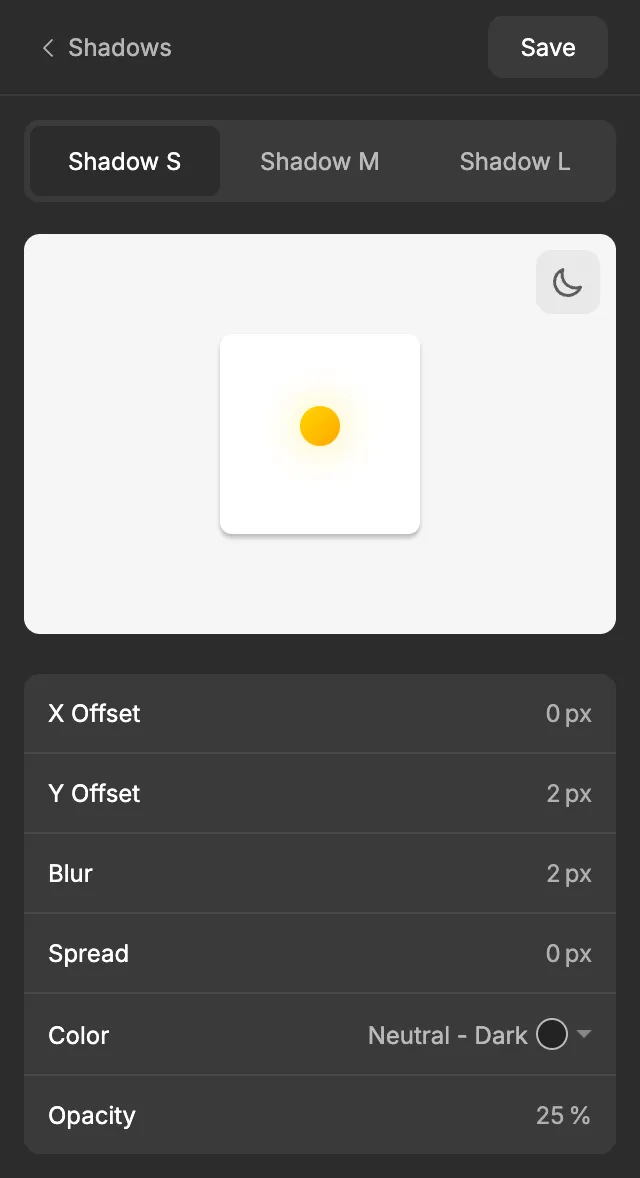
The Shadows screen sets up three drop shadows, Shadow S, Shadow M and Shadow L, from subtle to strong. A live preview shows each one as you edit it. When you click Save, the ACSS plugin for Figma creates them as effect styles you can apply to any layer.
Before you start
Section titled “Before you start”The shadow color is picked from your palette, so set up the Color Palette first.
Settings
Section titled “Settings”Pick a shadow with the Shadow S, Shadow M and Shadow L tabs at the top. Each tab has the same settings.
Preview
Section titled “Preview”The preview shows a card with the current shadow.
- Drag the light source, the sun in the middle, to set the shadow’s direction. The shadow falls on the opposite side, and the X Offset and Y Offset fields update as you drag. The further the light is from the center, the longer the shadow.
- Click the moon button in the corner to see the shadow on a dark background, and the sun button to switch back. This only changes the preview, not the shadow.
Shadow settings
Section titled “Shadow settings”| Setting | Shadow S | Shadow M | Shadow L | What it does |
|---|---|---|---|---|
| X Offset | 0 px | 0 px | 0 px | Moves the shadow right (positive) or left (negative). |
| Y Offset | 2 px | 4 px | 8 px | Moves the shadow down (positive) or up (negative). |
| Blur | 2 px | 4 px | 8 px | How soft the shadow’s edge is. |
| Spread | 0 px | 0 px | 0 px | Grows (positive) or shrinks (negative) the shadow before it’s blurred. |
| Color | Neutral - Dark | Neutral - Dark | Neutral - Dark | The shadow color, from your palette. |
| Opacity | 25 % | 25 % | 25 % | How strong the shadow color is. 0 % is invisible, 100 % is fully solid. |
When you’re done, click Save. See Saving and auto-save for what Save does.
What gets created in Figma
Section titled “What gets created in Figma”The plugin creates three effect styles, each with one drop shadow:
| Effect style | What it’s for |
|---|---|
Shadows/Shadow S |
Subtle depth, for example on buttons, inputs or small cards. |
Shadows/Shadow M |
Cards and panels that should stand out from the page. |
Shadows/Shadow L |
Elements that float above everything else, like dropdowns, popovers and modals. |
Shadows are effect styles only. There are no shadow variables, so there’s no code syntax either: Dev Mode shows the style name and the shadow’s values.
Using it in your designs
Section titled “Using it in your designs”- Select a frame or shape.
- In the right sidebar, find the Effects section and click the style icon.
- Pick a shadow, for example
Shadows/Shadow M.
Shadows work the same on desktop and mobile, so there’s one set for both.
In WordPress
Section titled “In WordPress”When you export to WordPress, Shadow S, Shadow M and Shadow L become the first three ACSS box shadows. The export includes each shadow’s offsets, blur and spread, and its color at your opacity, for example 0px 4px 4px color-mix(in oklch, var(--neutral-dark) 25%, transparent). Because the color is a link to your palette color, the shadow keeps following the palette in WordPress.
Learn more in the ACSS shadows docs.
Good to know
Section titled “Good to know”- The plugin owns its shadow styles. If you edit one of them in Figma, the next Save replaces it with the settings from the plugin. Change shadows in the plugin instead.
- If you rename a shadow style in Figma, the next Save creates a new one with the original name, and the renamed one stops updating. Keep the plugin’s names.