Color Palette
Primary sets the tone
How Primary's lightness and chroma shape every color family, and how to use the OKLCH color picker, sliders and Hex field.
The ACSS plugin for Figma builds the whole palette from one color. Primary owns two of the three numbers that describe a color, lightness and chroma, and every other family takes them over and only picks its own hue. Change Primary, and every family moves with it. That’s what keeps ten colors looking like one set.
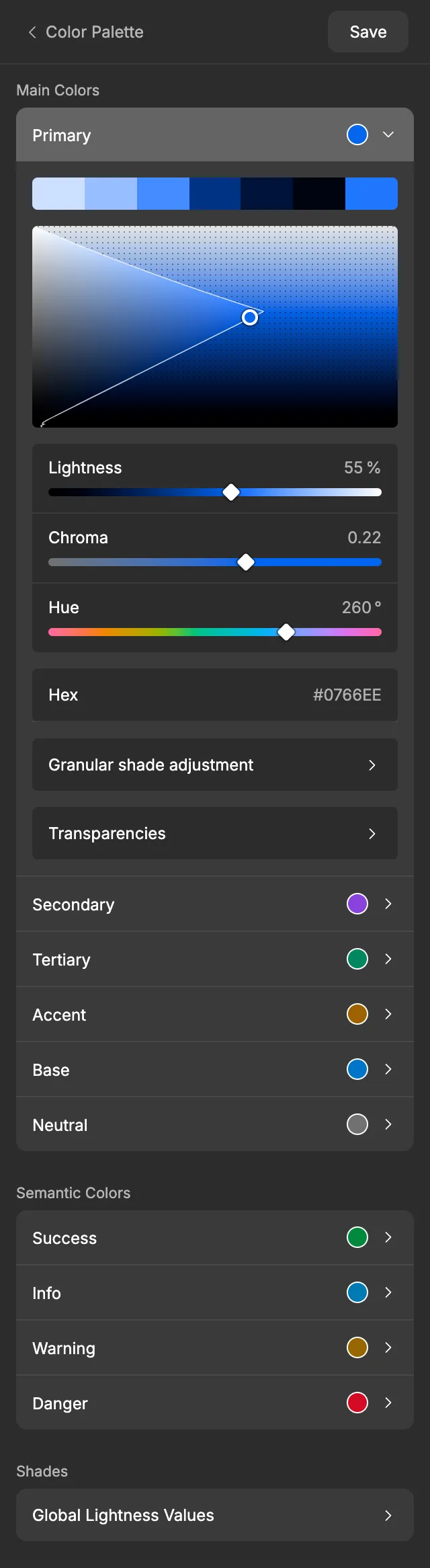
Lightness, chroma and hue
Section titled “Lightness, chroma and hue”The plugin describes colors in OKLCH, the format ACSS 4 uses. OKLCH uses three numbers that match how people see color:
| Value | What it means |
|---|---|
| Lightness | How light the color looks, from 0 % (black) to 100 % (white). |
| Chroma | How vivid the color is. 0 is gray, and the higher the number, the more colorful. The plugin’s scale ends at 0.37, which covers the most vivid colors screens can show. |
| Hue | Which color it is, as an angle from 0° to 360°. The default palette gives some reference points: red at 25°, amber at 70°, green at 150°, blue at 260° and purple at 300°. |
In older formats like HSL, a yellow and a blue at the same lightness look very different: the yellow looks much brighter. In OKLCH, two colors with the same lightness look equally light, whatever their hue. That’s why one lightness can work for every family.
How the other families follow Primary
Section titled “How the other families follow Primary”- Secondary, Tertiary, Accent, Base, Success, Info, Warning and Danger use Primary’s lightness and chroma with their own hue. Their main colors look equally light and similarly vivid.
- Neutral uses Primary’s lightness with a chroma of 0, so it’s a true gray. Its Hue slider has no visible effect until you give it some chroma.
- The shades of every family use the shared lightness table, and Hover is a little lighter than each family’s main color. See Global lightness and hover.
When one family needs to break the rule, for example to match an exact brand hex or to tint Neutral, turn on its Manual controls.
Settings
Section titled “Settings”Open Primary in the Main Colors section. Primary always has its full set of controls, so it has no Manual controls switch.
Color picker
Section titled “Color picker”The square shows every lightness and chroma for Primary’s current hue:
- From left to right, chroma goes from gray (0) to the most vivid (0.37).
- From top to bottom, lightness goes from white to black.
Drag the handle or click anywhere to pick a color. The thin white line marks the edge of the colors your file can show. Past the line, the area has a dot pattern: those colors can’t be shown, so the plugin draws the nearest one it can. If you click there, Primary gets the most vivid chroma possible at that lightness.
To nudge the color with the keyboard, click the handle and use the arrow keys. ↑ and ↓ change lightness by 1 %, ← and → change chroma by 0.002. Hold Shift for steps five times bigger.
Sliders
Section titled “Sliders”| Slider | Range | Default |
|---|---|---|
| Lightness | 0 – 100 % | 55 % |
| Chroma | 0 – 0.37 | 0.22 |
| Hue | 0 – 360° | 260° |
Drag a slider or type a value in the box next to its name. A comma works as the decimal mark, and anything that isn’t a number snaps back to the current value. The Lightness and Chroma tracks show the colors you’d get along them. If you ask for more chroma than Primary’s lightness and hue can show, the plugin uses the highest chroma that’s possible.
The Hex field shows Primary’s main color as a hex code. Type a hex code to set lightness, chroma and hue in one go. #0766EE, 0766EE and the short form #06E all work. A gray hex code has no hue, so Primary keeps its current hue.
For the Granular shade adjustment and Transparencies rows, see Granular shade adjustment and Transparencies.
Closest possible chroma
Section titled “Closest possible chroma”Not every chroma is possible at every lightness. Very light and very dark colors can’t be very vivid, and some hues reach higher chroma than others. So each shade gets the closest possible chroma: the chroma of its family, or the highest the hue can show at that shade’s lightness, whichever is lower.
With the default Primary (chroma 0.22), the shades come out like this:
| Shade | Lightness | Chroma it gets |
|---|---|---|
| Ultra-light | 0.9 | 0.049 |
| Light | 0.8 | 0.101 |
| Semi-light | 0.65 | 0.187 |
| Semi-dark | 0.35 | 0.143 |
| Dark | 0.2 | 0.082 |
| Ultra-dark | 0.1 | 0.041 |
This happens automatically, and it’s why the lightest and darkest shades look softer than the main color. The family’s chroma stays the target: if you change the lightness later, every shade gets as close to it as it can again. You can see the real values of any family in its Granular shade adjustment table.
The hue matters too. Yellows and ambers can only be vivid when they’re light. At the default 55 % lightness, the Accent (70°) and Warning (75°) hues reach only about 0.12 chroma, while Primary’s blue reaches 0.22. That’s why they look ochre or brown rather than bright yellow. Greens such as Tertiary are limited in the same way, to about 0.12.
Display P3 and sRGB
Section titled “Display P3 and sRGB”Every Figma file has a color profile: sRGB or Display P3. Display P3 can show more vivid colors than sRGB. The plugin follows your file’s color profile, so there’s no setting for it in the plugin.
- In a Display P3 file, the plugin makes P3 colors. The edge line in the color picker moves out and chroma can go higher. For example, Primary’s blue at 55 % lightness can reach 0.268 instead of 0.224.
- In an sRGB file, or a file with an unmanaged profile, the plugin makes sRGB colors.
The Hex field always shows the sRGB version of the color, since hex codes are sRGB. In a Display P3 file, when the main color is more vivid than sRGB can show, a hint appears under the field: “Outside sRGB. Hex shows the closest sRGB color.”
If you change the file’s color profile while the plugin is open, the next Save notices it, works out the colors again for the new profile and saves them.
In WordPress
Section titled “In WordPress”ACSS has the same idea as the plugin: it can unify the lightness of your brand colors and of your status colors. When you export to WordPress, Primary’s lightness becomes ACSS’s unified lightness, and unifying is switched on for both groups.
If a family has its own lightness from Manual controls, unifying would overwrite it. So the export switches unifying off for the brand colors when Secondary, Tertiary, Accent, Base or Neutral has its own lightness, and for the status colors when Success, Info, Warning or Danger does. The other families still get the right colors, because the export writes every family’s exact values.
Learn more in the ACSS color docs.
Good to know
Section titled “Good to know”- A change to Primary reaches every family that follows it the next time you click Save.
- The swatches in the plugin show the exact colors, including P3 colors on displays that support them.