ACSS plugin
ACSS plugin for Figma
What the ACSS plugin for Figma creates in your file, what each of its screens does, and how to go from setup to WordPress.
The ACSS plugin for Figma sets up an ACSS design system in your Figma file as native variables and styles. You choose a few starting values, like a brand color, a base font size and a spacing size, and the plugin builds complete scales from them. Everything uses the same names and code syntax as ACSS, so your design and the finished WordPress site speak the same language.
What it creates
Section titled “What it creates”When you click Save, the plugin creates or updates eight variable collections, plus text styles and effect styles:
| In Figma | What’s inside |
|---|---|
| Color Palette collection | Ten color families with eight shades each, your transparencies, and White, Black and Transparent. |
| Spacing collection | The spacing scale, section spacing, section gutters and contextual gaps. |
| Layout collection | Content widths, website widths and the width steps from 10 to 90. |
| Typography collection | Font sizes, line heights, font weights, letter spacing, font families, and heading and text colors. |
| Borders collection | The corner radius scale, border width and border colors. |
| Backgrounds & Text collection | Background colors and text colors for light and dark sections. |
| Buttons & Links collection | Button padding, minimum width, border width and radius, and the link font weight. |
| Forms collection | Spacing, borders and colors for form labels, inputs and help text. |
| Text styles | Headings, body text sizes, button text and form text, each for desktop and mobile. |
| Effect styles | Three shadows: Shadow S, M and L. |
Learn how these fit together in Collections, variables and styles, or look up any name in All variables and styles.
The screens
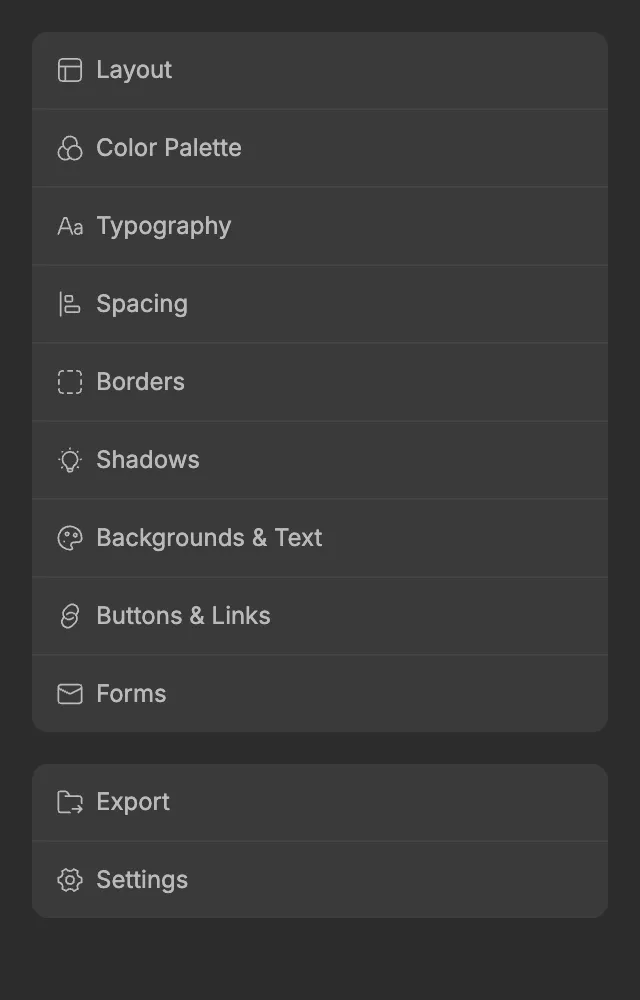
Section titled “The screens”The screens are listed in the same order as the plugin’s home menu.
| Screen | What you set up |
|---|---|
| Layout | The content width for desktop and mobile, and the widths built from it. |
| Color Palette | Ten color families. Primary sets the tone, and the other families follow it. |
| Typography | Fonts, base sizes and type scales for headings and body text. |
| Spacing | The spacing scale, section spacing and named gaps for layouts. |
| Borders | Corner radius sizes, border width and border colors. |
| Shadows | Three drop shadows, small to large. |
| Backgrounds & Text | Which palette colors to use for backgrounds and text on light and dark sections. |
| Buttons & Links | Button padding, text and borders, and the link font weight. |
| Forms | Labels, inputs and help text, with light and dark color styles. |
| Export | Copy your settings for the ACSS plugin in WordPress. |
| Settings | The Figma canvas color and your license status. |
How you work with it
Section titled “How you work with it”-
Set up your screens. Start with your brand color, fonts and spacing. You can leave any screen on its defaults.
-
Click Save. The plugin writes the settings from every screen to your file at once. Nothing changes in Figma until you do. See Saving and auto-save.
-
Design with the variables and styles. Apply them to fills, text, padding, gaps and corners, or use the UI kit’s components, which already use them.
-
Change your mind any time. Adjust a setting and click Save again. Layers that use the variables update, because the plugin updates its variables instead of replacing them.
-
Export to WordPress. When the design is ready, export your settings to the ACSS plugin in WordPress, so the website matches.
Setting up a new file
Section titled “Setting up a new file”Some screens reuse what you set on others. Buttons take their text sizes and font from Typography, Forms use your spacing, and many screens let you pick colors from your palette. Setting things up in this order means you see real values as you go:
- Layout: your content width.
- Color Palette: your brand color first, then the other families.
- Typography: fonts and sizes for headings and text.
- Spacing: the spacing scale and section spacing.
- Borders and Shadows.
- Backgrounds & Text: which palette colors to use for backgrounds and text.
- Buttons & Links and Forms, which build on all of the above.
Then click Save. You can click Save after each screen too. It doesn’t matter for the result, because every Save writes all screens.