Utility components
Aspect Ratio
Keep images and videos at a fixed width-to-height ratio in Figma with the Frames For Figma Aspect Ratio component, from 1:1 and 16:9 to the golden ratio and A4.
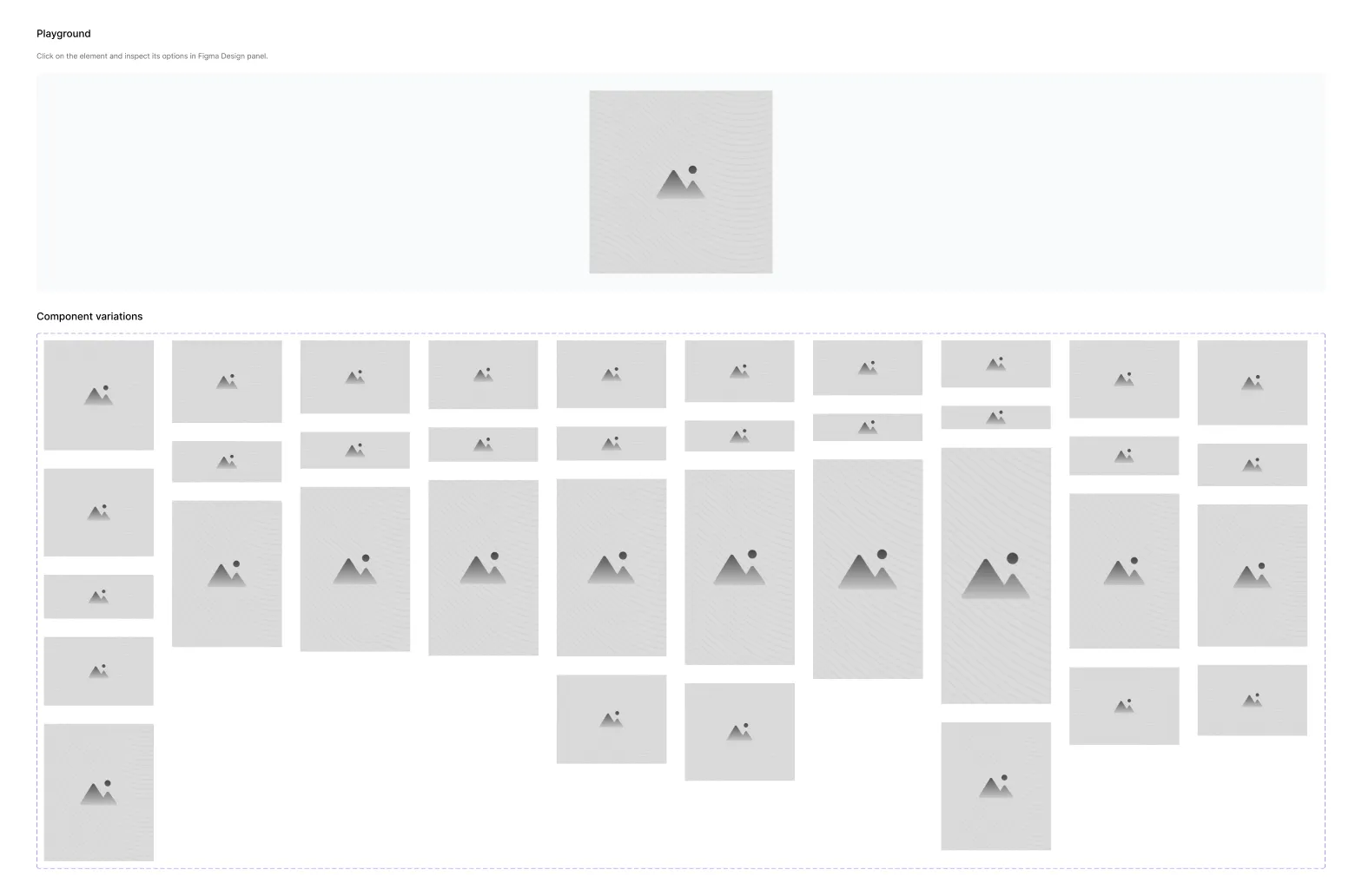
The Aspect Ratio component (on 📕 Utility components → ↳ Aspect Ratio) is an image placeholder that keeps its width-to-height ratio. Make it wider or narrower, and its height follows, so a 16:9 image stays 16:9 at any size. Almost every image in the kit’s templates is one, which is why they resize cleanly between layouts.
Pick a ratio
Section titled “Pick a ratio”Select the component and choose a value in Aspect ratio. There are 37:
| Group | Ratios |
|---|---|
| Common | 1:1, 4:3, 3:2, 16:9, 21:9, 9:16 |
| Landscape | 2:1, 3:1, 4:1, 5:2, 5:4, 8:3, 8:5, 9:8, 14:3, 16:5, 16:10, 32:9 |
| Portrait | 1:2, 2:3, 3:4, 4:5, 6:7, 9:21, 10:16 |
| Golden ratio | Landscape, portrait, and half of each |
| Paper | A4 and Letter, landscape and portrait, and half of each |
Resize it
Section titled “Resize it”Change the component’s width, or set its width to Fill container inside an auto layout frame. The height changes on its own to keep the ratio. Don’t set the height by hand.
Add your image
Section titled “Add your image”-
Select the BG Image layer inside the component.
-
In the Design panel, click the image fill under Fill and choose Choose image.
-
Pick your image. It fills the shape and is cropped to the ratio.
The component also has a BG Overlay layer above the image. Give it a fill, for example black at 40 % opacity, to darken an image behind text.
Good to know
Section titled “Good to know”- The ratio is kept by a hidden helper layer, Aspect ratio keeper. Don’t delete or resize it.
- For videos, use the Video component, which is built on a 16:9 Aspect Ratio.