Color Palette
Transparencies
Add see-through versions of any shade, like Primary at 50 % opacity, as Figma color variables that stay in step with your palette.
A transparency is a see-through version of a shade, for example Primary’s main color at 50 % opacity. Use them for overlays on images, tinted backgrounds or soft borders. The ACSS plugin for Figma creates each one as a color variable that follows its shade: change the palette, click Save, and your transparencies change with it.
Before you start
Section titled “Before you start”Transparencies are added one at a time, per family. Add only the ones your design uses: each one becomes a variable. Every family has a Transparencies row, with or without Manual controls. The number next to it shows how many the family has.
Settings
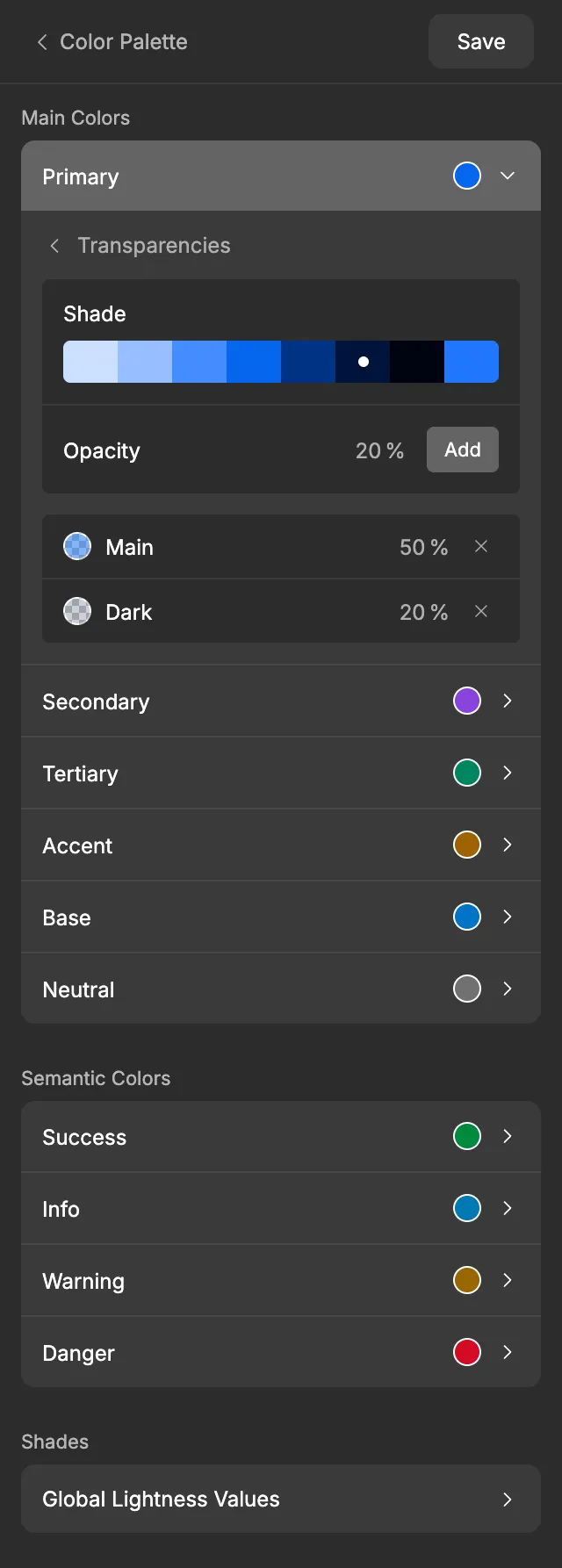
Section titled “Settings”Open a family and click Transparencies. The shade strip at the top is hidden here, because this view has its own shade picker. To go back, click Transparencies at the top.
Adding a transparency
Section titled “Adding a transparency”- Under Shade, click the shade to start from. You can choose Ultra-light, Light, Semi-light, Main, Semi-dark, Dark, Ultra-dark or Hover. Hover over a swatch to see its name. Main is selected at first.
- In Opacity, type a whole number from 1 to 99. The default is 50 %.
- Click Add, or press Enter in the Opacity field.
Decimals are rounded, so 12.5 becomes 13, and values outside 1 – 99 are set to the nearest limit. Each family can have the same shade more than once at different opacities, but not the same shade and opacity twice. If you try to add one that already exists, nothing is added and the existing row flashes.
Until you add the first one, the view says “No transparencies yet. Pick a shade and an opacity, then click Add.”
The list
Section titled “The list”Each transparency gets a row with a preview swatch, the shade name and its opacity. The list is sorted by shade, then by opacity.
- Change the opacity: type a new number in the row. If the new value would duplicate another row, it snaps back and the other row flashes.
- Remove it: click × at the end of the row.
To change the shade of a transparency, remove it and add a new one.
When you’re done, click Save. See Saving and auto-save for what Save does.
What gets created in Figma
Section titled “What gets created in Figma”Each transparency is a color variable in the Color Palette collection, in a Transparent group inside its family. The name is the shade and the opacity.
| Variable | Code syntax | Value |
|---|---|---|
Main Colors/Primary/Transparent/Main 50 |
color-mix(in oklch, var(--primary) 50%, transparent) |
Primary’s main color at 50 % opacity. |
Main Colors/Neutral/Transparent/Ultra-Dark 80 |
color-mix(in oklch, var(--neutral-ultra-dark) 80%, transparent) |
Neutral’s Ultra-dark at 80 % opacity. |
Semantic Colors/Success/Transparent/Dark 20 |
color-mix(in oklch, var(--success-dark) 20%, transparent) |
Success’s Dark at 20 % opacity. |
The variable’s description holds its OKLCH value with the opacity, for example oklch(0.55 0.22 260 / 50%). If you write your own description, the plugin keeps it.
How transparencies stay in step with the palette:
- They follow their shade on every Save. Figma can’t link a variable to another one at a different opacity, so each transparency stores its own color. Every time you click Save, the plugin copies the shade’s current color into it again. Between saves, they don’t change.
- Changing the opacity renames the same variable. For example,
Main 50becomesMain 40on the next Save. Layers that use it stay linked and get the new opacity. - Removing one deletes its variable on the next Save.
- Renamed in Figma? The next Save gives it back its plugin name.
The plugin only renames or deletes transparency variables it created. A variable you add to a Transparent group yourself is left alone, unless it has exactly the name of one of your transparencies: then the plugin uses it.
Using it in your designs
Section titled “Using it in your designs”Apply a transparency like any other color variable: select a layer, click the variable icon next to its Fill or Stroke, and open the Color Palette collection. Transparencies are in each family’s Transparent group, for example Main Colors › Primary › Transparent › Main 50.
They can be used for fills, strokes and effect colors such as shadows.
In WordPress
Section titled “In WordPress”Transparencies aren’t exported to WordPress. ACSS 4 has no transparency settings: in ACSS 4, developers write see-through colors with CSS color-mix(). That’s exactly what each transparency’s code syntax gives them. In Dev Mode, a developer sees color-mix(in oklch, var(--primary) 50%, transparent) and can paste it straight into the site’s CSS.
Learn more in the ACSS color docs.
Good to know
Section titled “Good to know”- Color dropdowns on other screens, such as Backgrounds & Text, don’t list transparencies. They offer the shades of each family plus Transparent, White and Black.
- Opening Transparencies closes the Granular shade adjustment view of the same family, and the other way around.
- A transparency of the Hover shade follows the Hover color, which is worked out from the main color. See How hover works.