Plugin screens
Backgrounds & Text
Choose the palette colors for light and dark section backgrounds and for text, and get Figma variables that follow your Color Palette.
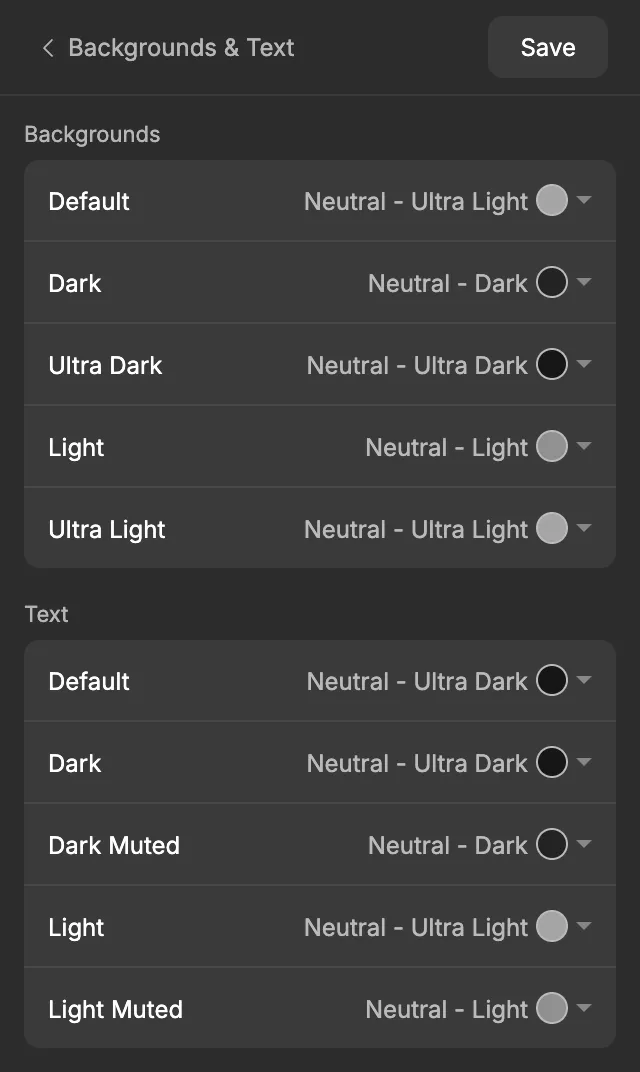
The Backgrounds & Text screen of the ACSS plugin for Figma decides which palette colors your designs use for section backgrounds and for text. Each setting points to a color in your Color Palette, so when you change the palette, your backgrounds and text colors change with it.
Before you start
Section titled “Before you start”Every option on this screen comes from the Color Palette screen, so set up your palette first. You can keep changing the palette afterwards. The variables made here point to the palette colors, so they follow along.
Settings
Section titled “Settings”ACSS (Automatic CSS) names these colors by their job, not by their hue. A page is a stack of sections, some on a light background and some on a dark one, and the text in each section needs enough contrast to read:
- On a Light or Ultra Light background, use the Dark text colors.
- On a Dark or Ultra Dark background, use the Light text colors.
- The Muted text colors are for secondary text, such as the paragraph under a heading, which can be a little softer than the main text.
In WordPress, ACSS can switch the text to the light colors for you when a section gets a dark background. In Figma you pick them yourself, and these names tell you which one fits.
Every setting is a color dropdown. Click it to see each family and shade of your palette, for example Neutral - Dark or Primary - Main, with a swatch of the color. Type in the search field at the top of the list to find a color quickly. Transparent, White and Black are at the bottom.
Backgrounds
Section titled “Backgrounds”| Setting | Default | Use it for |
|---|---|---|
| Default | Neutral - Ultra Light | The main background of your pages. |
| Dark | Neutral - Dark | Dark sections. |
| Ultra Dark | Neutral - Ultra Dark | The darkest sections, when you want the most contrast with the rest of the page. |
| Light | Neutral - Light | Light sections that stand out from the page background. |
| Ultra Light | Neutral - Ultra Light | The lightest sections, for a subtle change from the page background. |
| Setting | Default | Use it for |
|---|---|---|
| Default | Neutral - Ultra Dark | The main body text color. |
| Dark | Neutral - Ultra Dark | Text on light backgrounds. |
| Dark Muted | Neutral - Dark | Secondary text on light backgrounds. |
| Light | Neutral - Ultra Light | Text on dark backgrounds. |
| Light Muted | Neutral - Light | Secondary text on dark backgrounds. |
Text Default is the same setting as Text Color in the Text part of the Typography screen. Change it in either place and the other one updates.
When you’re done, click Save. See Saving and auto-save for what Save does.
What gets created in Figma
Section titled “What gets created in Figma”The background and text colors go into the Backgrounds & Text collection, in a Backgrounds group and a Text group. Each variable is an alias: it points to the palette color you picked instead of holding a color of its own.
| Variable | Code syntax | What it’s for |
|---|---|---|
Backgrounds/BG Default |
none | The main page background. |
Backgrounds/BG Dark |
var(--bg-dark) |
Dark sections. |
Backgrounds/BG Ultra Dark |
var(--bg-ultra-dark) |
The darkest sections. |
Backgrounds/BG Light |
var(--bg-light) |
Light sections. |
Backgrounds/BG Ultra Light |
var(--bg-ultra-light) |
The lightest sections. |
Text/Text Dark |
var(--text-dark) |
Text on light backgrounds. |
Text/Text Dark Muted |
var(--text-dark-muted) |
Secondary text on light backgrounds. |
Text/Text Light |
var(--text-light) |
Text on dark backgrounds. |
Text/Text Light Muted |
var(--text-light-muted) |
Secondary text on dark backgrounds. |
Text Default isn’t in this collection. It’s created by Typography as Text/Text Color in the Typography collection, with the code syntax var(--body-color), ACSS’s body text color.
Using it in your designs
Section titled “Using it in your designs”The background variables appear where you set fills on frames and shapes. The text variables appear where you set the color of text and strokes. That keeps each list short.
- Select a section frame. In the Fill section of the right sidebar, click the four-dot icon to apply a style or variable, and choose
Backgrounds/BG Dark. - Select the heading and text layers inside the section.
- Set their fill to
Text/Text Light, and useText/Text Light Mutedfor secondary text.
For a light section, do the same with Backgrounds/BG Light or Backgrounds/BG Ultra Light and the Text/Text Dark colors. Use Backgrounds/BG Default for the background of the page frame itself.
In WordPress
Section titled “In WordPress”When you export to WordPress, these settings become ACSS’s background and text color assignments. The Backgrounds Default sets the body background color, the Text Default sets the body text color, and the other settings set ACSS’s matching background and text colors. They’re exported as references to your palette colors, for example var(--neutral-dark), so they keep following the palette in WordPress too.
Learn more in the ACSS backgrounds docs and the ACSS background and text assignments docs.
Good to know
Section titled “Good to know”- Background Default and Ultra Light both start as Neutral - Ultra Light. Change one if you want the page background and the ultra light sections to look different.
- Text Default and Dark both start as Neutral - Ultra Dark.
- If you rename one of these variables in Figma, the next Save creates a new one with the original name, and the renamed one stops updating. Keep the plugin’s names.