ACSS plugin
Export to WordPress
Copy your plugin settings as an ACSS 4 settings file and import it into Automatic CSS in WordPress, so your site uses the same values as your Figma file.
The ACSS plugin for Figma can turn your settings into a settings file for ACSS 4, the Automatic CSS plugin for WordPress. Import that file on your site and ACSS uses the same colors, type sizes, spacing and other values as your Figma design. You don’t have to type anything in twice.
Before you start
Section titled “Before you start”- You need a WordPress site with ACSS 4 installed. See how to install ACSS.
- The export uses the settings that are in the plugin right now, including changes you haven’t saved yet. Click Save first anyway, so your Figma variables and your WordPress site match.
Copy the settings from Figma
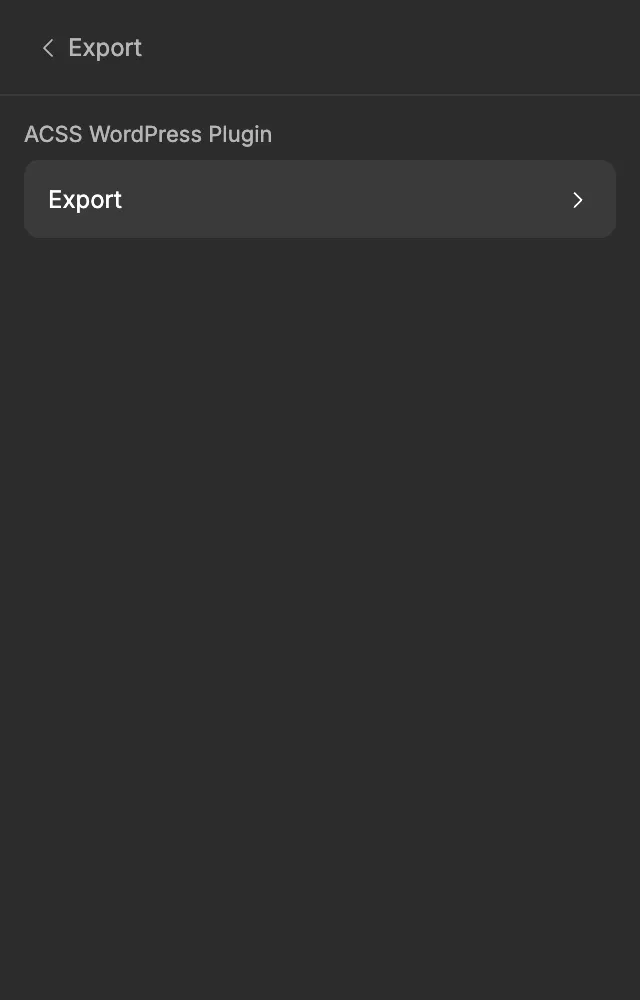
Section titled “Copy the settings from Figma”- In the plugin’s home menu, click Export.
- Under ACSS WordPress Plugin, click Export.
- The button changes to ✅ Copied! for a moment. Your settings are now on the clipboard.
- Open a plain text editor, paste, and save the file with a
.jsonextension, for exampleacss-settings.json. On a Mac you can use TextEdit after choosing Format > Make Plain Text. On Windows, Notepad works.
ACSS imports settings from a file, which is why you save the copied text as one.
Import the settings in WordPress
Section titled “Import the settings in WordPress”These steps are for ACSS 4.0.2 and later.
- On your site, open the Automatic.css dashboard, on the front end or in your page builder.
- Click the menu icon in the top right corner of the dashboard and choose Export settings. Keep the downloaded file as your backup.
- Open the same menu, choose Import settings, and select the
.jsonfile you saved from Figma. - Review the result. Imported values aren’t saved yet; they show up as unsaved changes.
- Click Save in the ACSS dashboard. If you reload the page before saving, the import is thrown away.
On ACSS versions before 4.0.2, use the Import & Export tab in the WordPress admin instead. See the ACSS import and export docs for details.
What’s included
Section titled “What’s included”| Plugin screen | What the export sets in ACSS |
|---|---|
| Color Palette | All ten families, with the main color and every shade, as OKLCH values. Each family is switched on in ACSS. |
| Layout | Your desktop and mobile content widths. |
| Typography | Font families, base sizes and scale ratios, size overrides, the H5, H6, Text S and Text XS sizes, weights, line heights, letter spacing, text transform and colors for headings and text. Desktop sizes become ACSS’s maximum sizes and mobile sizes its minimum sizes, and ACSS scales smoothly between them. |
| Spacing | Base value, scale ratio, section multiplier, section gutter and the contextual gaps. |
| Borders | Border width, radius, radius scale and the light and dark border colors. |
| Shadows | Shadows S, M and L. |
| Backgrounds & Text | The body background and text colors, and the background and text color assignments. |
| Buttons & Links | Button padding, minimum width, label text settings, border width and radius, and the link font weight. |
| Forms | Label, input and help text sizes and spacing, and the Light Styles colors. |
What stays in Figma
Section titled “What stays in Figma”A few things have no matching setting in ACSS 4, so they aren’t exported:
- Transparencies from the Color Palette. ACSS 4 has no transparency settings. Their code syntax is a CSS formula built on your ACSS colors, for example
color-mix(in oklch, var(--primary) 50%, transparent), so a developer can use it in WordPress as it is. See Transparencies. - The button Gap. ACSS has no button gap setting.
- The button Outline Border Width. ACSS 4 uses the same Border Width for solid and outline buttons.
- The form Dark Styles colors. ACSS 4 has one set of form colors and adapts it to your site’s color scheme. See Forms.
- The form label’s Text Transform and padding, and the Asterisk color. ACSS has no matching form settings.
- The Figma canvas color, which is only for Figma.
How unified lightness is set
Section titled “How unified lightness is set”In the plugin, Primary sets the tone: every other family uses Primary’s lightness unless you give it its own with Manual controls. ACSS has a similar feature called unified lightness: one shared lightness value, with one switch for your brand colors and one for your status colors. The export sets it up to match your Figma palette:
- Primary’s lightness becomes ACSS’s unified lightness value.
- The brand switch covers Secondary, Tertiary, Accent, Base and Neutral. The export turns it on when all of them use Primary’s lightness.
- The status switch covers Success, Info, Warning and Danger. The export turns it on when all of them use Primary’s lightness.
- If any family in a group has its own lightness, the export turns that group’s switch off. ACSS then keeps every color in the group exactly as you set it in Figma.
Good to know
Section titled “Good to know”- ACSS has an alternate color scheme, for example for a dark mode. The plugin doesn’t have one, so the export gives the alternate scheme the same colors as your main palette. Set it up in ACSS if you need it.
- To keep every color displayable, the export rounds chroma down very slightly, so you may see a tiny difference between an OKLCH value in Figma and in ACSS.
- You can export as often as you like. Each import replaces the values from the previous one, so export again after you change your settings in Figma.
- If you see “Failed to copy to clipboard. Please try again.”, click Export again. If the plugin says no saved configuration was found, click Save and export again.