Plugin screens
Buttons & Links
Set button padding, minimum width, label text and borders, plus the link font weight, and get Figma variables and text styles for small, medium and large buttons.
The Buttons & Links screen of the ACSS plugin for Figma sets how buttons and links look across your designs. From it you get padding, border and radius variables plus ready-made text styles for small, medium and large buttons, so every button in your file has the same proportions.
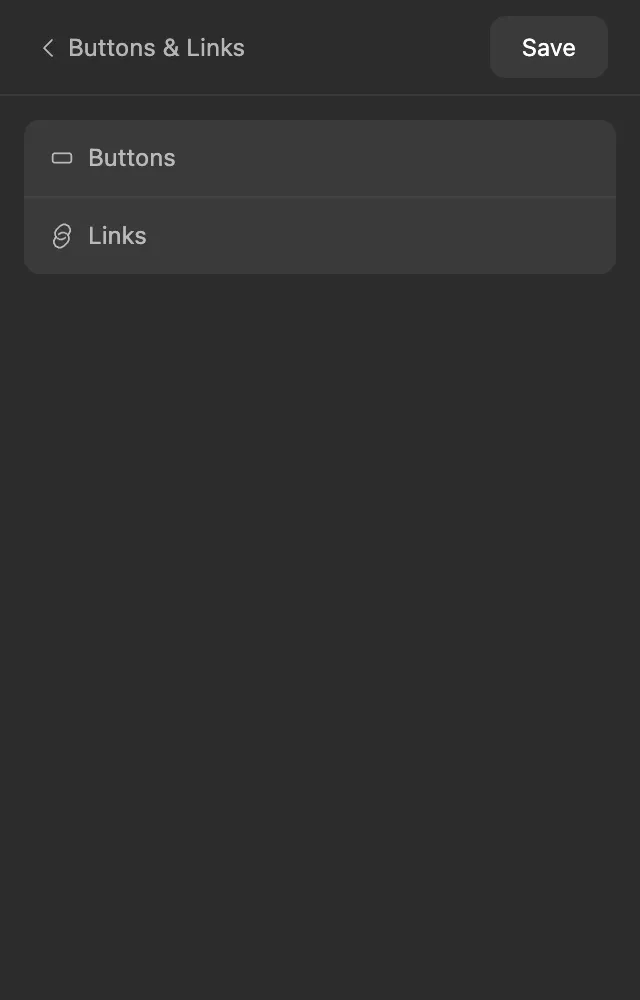
The screen has two parts. Click Buttons or Links to open one.
Before you start
Section titled “Before you start”Buttons build on two other screens, so set those up first:
- Typography: button labels use the Font Family from the Text part of Typography, and the small, medium and large buttons use the Text S, Text M and Text L sizes. The padding is worked out from these sizes too.
- Borders: the Border Radius options are the radius variables from the Borders screen.
Settings
Section titled “Settings”Buttons
Section titled “Buttons”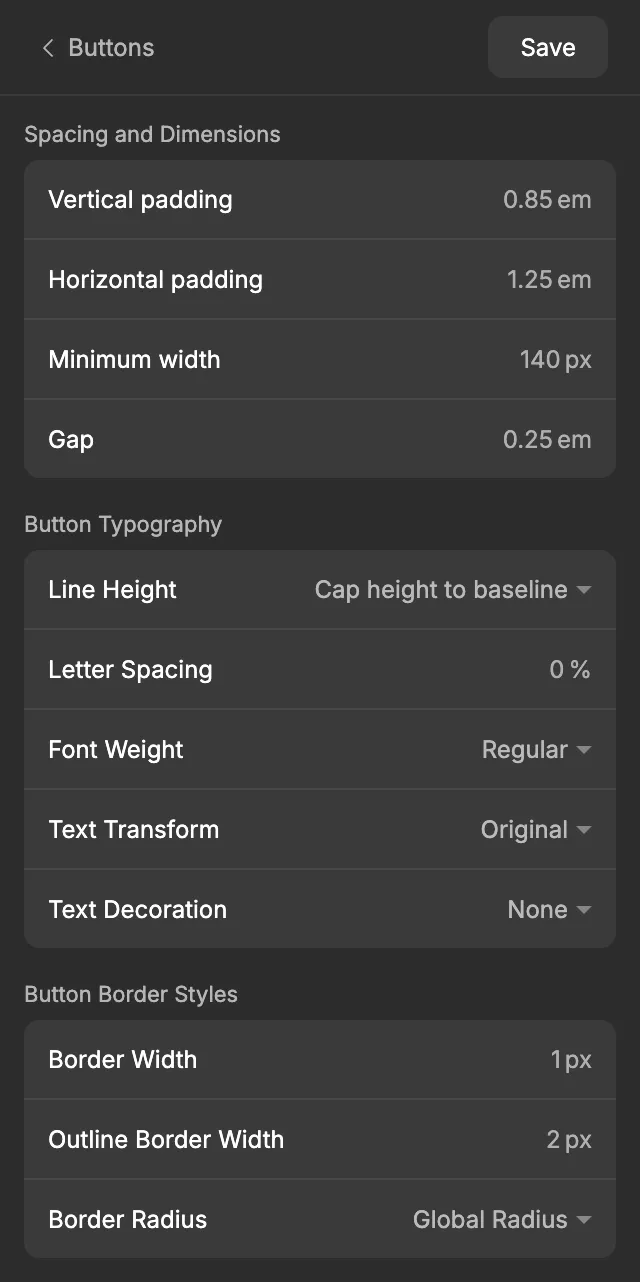
Spacing and Dimensions
Section titled “Spacing and Dimensions”Padding and gap are set in em. One em is the size of the button’s text, so 0.85 em means “0.85 times the text size”. Because the plugin makes three button sizes, each size gets padding that fits its own text: a large button gets more padding than a small one, and the proportions stay the same.
| Setting | Default | What it does |
|---|---|---|
| Vertical padding | 0.85 em | The space above and below the label. |
| Horizontal padding | 1.25 em | The space to the left and right of the label. |
| Minimum width | 140 px | The narrowest a button can be, so buttons with short labels don’t look cramped. A longer label still makes the button wider. |
| Gap | 0.25 em | The space between items inside a button, such as an icon and the label. |
For example, with the default Typography settings Text M is 18 px on desktop and 16 px on mobile, so a medium button gets:
| Setting | Desktop | Mobile |
|---|---|---|
| Vertical padding (0.85 em) | 15.3 | 13.6 |
| Horizontal padding (1.25 em) | 22.5 | 20 |
| Gap (0.25 em) | 4.5 | 4 |
Button Typography
Section titled “Button Typography”| Setting | Default | What it does |
|---|---|---|
| Line Height | Cap height to baseline | Cap height to baseline uses Figma’s vertical trim to remove the empty space above the capital letters and below the baseline. The label then sits exactly in the middle, and the padding alone decides the button’s height. Choose Custom to set a line height yourself in Custom Value (default 130 %). |
| Letter Spacing | 0 % | The space between letters, as a percentage of the text size. |
| Font Weight | Regular | The weight of the label. If your font doesn’t have that exact weight, the plugin uses the closest one it has. |
| Text Transform | Original | Original keeps the text as you type it. Uppercase, Lowercase and Title case change the letter case. |
| Text Decoration | None | None, Underline or Line-through. |
Button Border Styles
Section titled “Button Border Styles”| Setting | Default | What it does |
|---|---|---|
| Border Width | 1 px | The thickness of the button border. |
| Outline Border Width | 2 px | The border thickness of outline buttons, the style with a border and no fill. |
| Border Radius | Global Radius | How rounded the corners are. Pick Global Radius, a step from Radius XS to Radius XXL, or Radius 50% for fully rounded, pill-shaped buttons. |
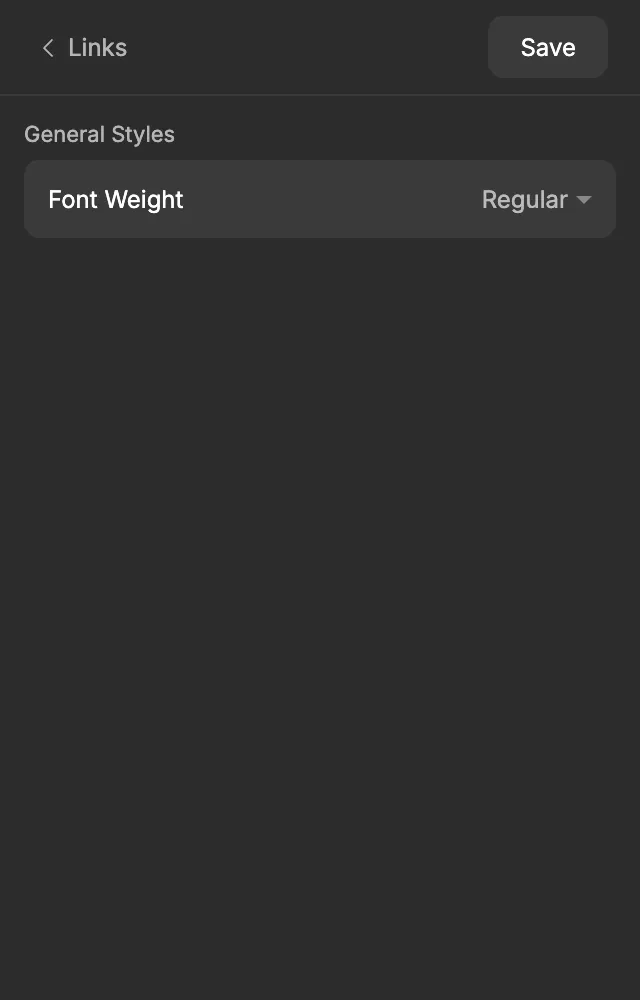
| Setting | Default | What it does |
|---|---|---|
| Font Weight | Regular | The weight of links inside your text. A heavier weight helps links stand out from the words around them. |
When you’re done, click Save. See Saving and auto-save for what Save does.
What gets created in Figma
Section titled “What gets created in Figma”Everything goes into the Buttons & Links collection, in a Buttons group and a Links group. Desktop variables start with D and mobile variables with M. The letter at the end is the button size: S (small), M (medium) or L (large).
| Variable | Code syntax | What it’s for |
|---|---|---|
Buttons/D Btn Y Padding S, M, L |
none | Top and bottom padding of desktop buttons. |
Buttons/D Btn X Padding S, M, L |
none | Left and right padding of desktop buttons. |
Buttons/D Btn Gap S, M, L |
none | The gap between an icon and the label on desktop. |
Buttons/M Btn Y Padding S … Buttons/M Btn Gap L |
none | The same nine variables for mobile buttons. |
Buttons/Btn Minimum Width |
var(--btn-min-width) |
The minimum width of every button. |
Buttons/Btn Border Width |
var(--btn-border-width) |
The border thickness of buttons. |
Buttons/Btn Outline Border Width |
none | The border thickness of outline buttons. |
Buttons/Btn Radius |
var(--btn-border-radius) |
Corner radius. It points to the radius you picked in the Borders collection. |
Links/Link Font Weight |
none | The font weight of links. |
Buttons/Btn Outline Border Width has no code syntax, because ACSS 4 uses --btn-border-width for outline buttons too.
The padding and gap variables hold the worked-out pixel values. They’re calculated each time you click Save, so after you change your text sizes on the Typography screen, the next Save updates them too.
The plugin also creates six text styles in a Buttons folder:
| Text style | Size |
|---|---|
Buttons/D Btn Text S, Buttons/M Btn Text S |
Text S on desktop and mobile |
Buttons/D Btn Text M, Buttons/M Btn Text M |
Text M on desktop and mobile |
Buttons/D Btn Text L, Buttons/M Btn Text L |
Text L on desktop and mobile |
Each one uses your Typography text font and the Line Height, Letter Spacing, Font Weight, Text Transform and Text Decoration from the Buttons screen.
Using it in your designs
Section titled “Using it in your designs”To build a medium desktop button:
- Make a frame with auto layout and put the label text inside it, plus an icon if you want one.
- Apply the
Buttons/D Btn Text Mtext style to the label. - Bind the frame’s top and bottom padding to
Buttons/D Btn Y Padding M, its left and right padding toButtons/D Btn X Padding M, and its gap toButtons/D Btn Gap M. - Bind the minimum width to
Buttons/Btn Minimum Width, the corner radius toButtons/Btn Radiusand the stroke weight toButtons/Btn Border Width.
For a small or large button, use the S or L variables with the matching text style. Keep the size letter the same on the text style and the padding, so the proportions stay right. In mobile designs, use the variables and text styles that start with M, for example Buttons/M Btn Y Padding M and Buttons/M Btn Text M.
For links, select the link text and bind its font weight to Links/Link Font Weight.
In WordPress
Section titled “In WordPress”When you export to WordPress, your button settings become the ACSS button settings: padding (in em, so it scales with the button text in WordPress too), minimum width, line height, letter spacing (in em, so 2 % becomes 0.02em), font weight, text transform, text decoration, border width and border radius. Cap height to baseline becomes a line height of 1, the closest match in CSS, and Radius 50% becomes a 999 px radius. The link Font Weight becomes the ACSS link weight. Gap stays in Figma, because ACSS has no button gap setting. ACSS 4 also uses one border width for solid and outline buttons, so in WordPress the Border Width applies to both and Outline Border Width stays in Figma.
Learn more in the ACSS button docs and the ACSS link docs.
Good to know
Section titled “Good to know”- There’s no font family or font size setting for buttons. Change them on the Typography screen and click Save.
- Cap height to baseline only changes how the text box is trimmed in Figma. It doesn’t change the size of the text.
- If you rename one of these variables or text styles in Figma, the next Save creates a new one with the original name, and the renamed one stops updating. Keep the plugin’s names.