Plugin screens
Typography
Set up ACSS heading and text sizes, fonts, weights, line heights and colors, and get Figma text styles and typography variables for desktop and mobile.
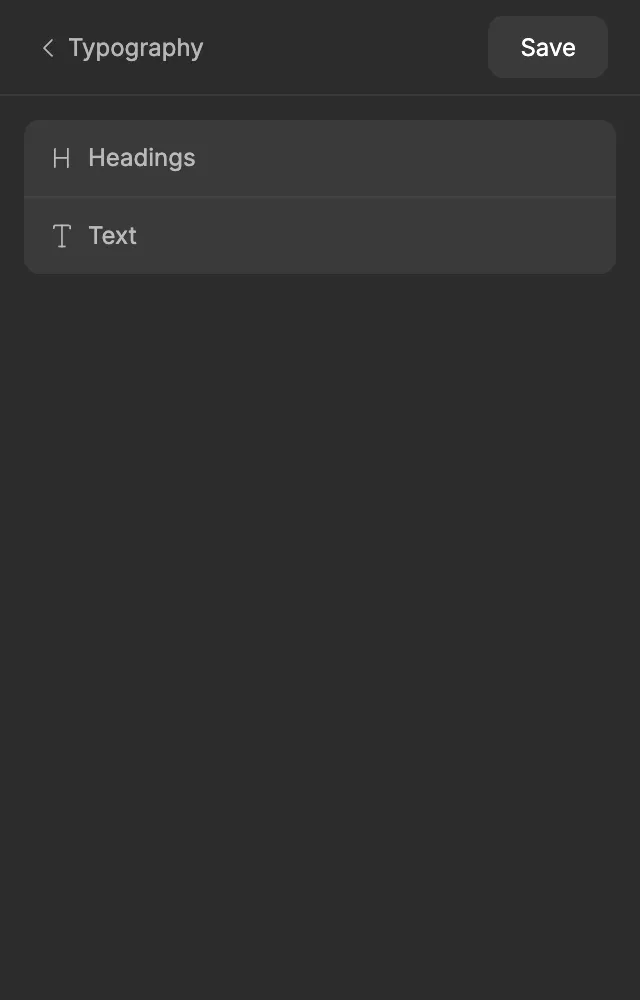
The Typography screen sets up two type scales: Headings (H1 to H6) and Text (XXL to XS). Each scale grows from one base size and a ratio, separately for desktop and mobile. When you click Save, the ACSS plugin for Figma creates 24 text styles you can apply to text layers, plus variables for every size, line height, weight, font and color.
Before you start
Section titled “Before you start”- Heading Color and Text Color are picked from your palette, so set up the Color Palette first.
- Fonts come from Figma. Only fonts that Figma can use in this file appear in the Font Family list.
- Other screens build on this one. Buttons use the Text S, M and L sizes and the text font, and Forms use the text font too.
Settings
Section titled “Settings”The Typography screen opens two sub-screens, Headings and Text. They work the same way. Each has an All tab for settings that apply to every level, and a tab per level (H1 to H6, or XXL to XS) to fine-tune one level.
Font sizes
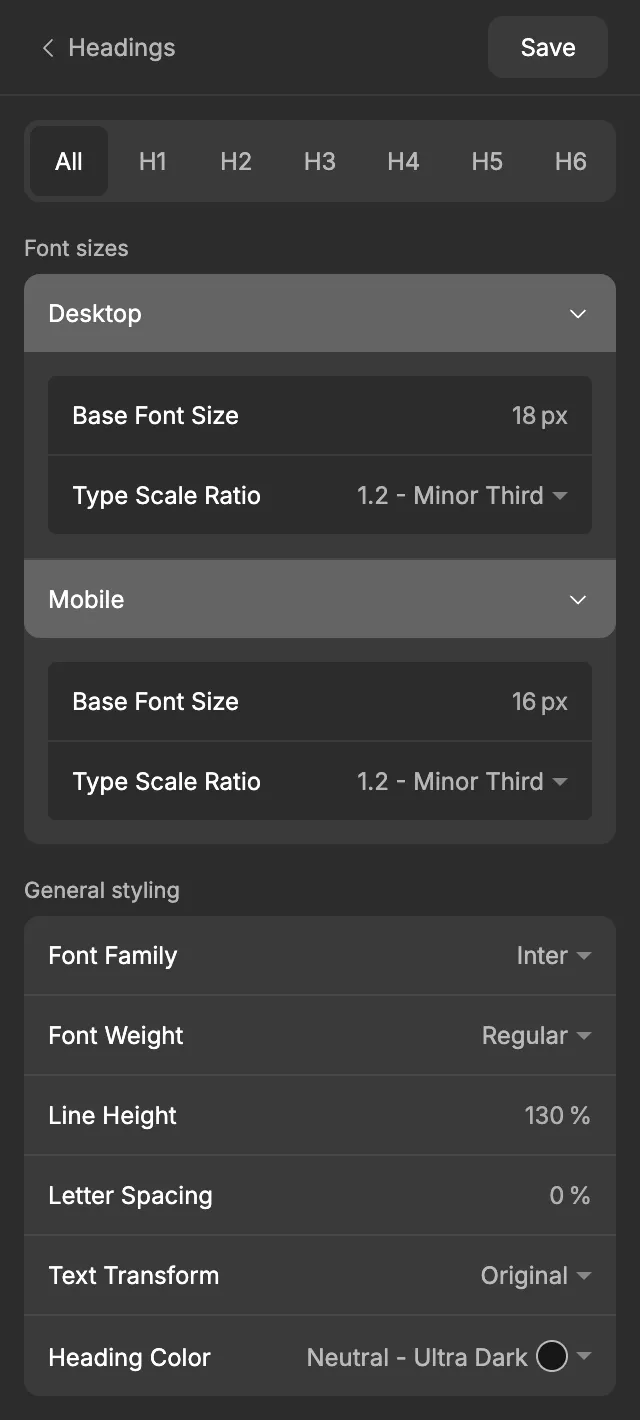
Section titled “Font sizes”On the All tab, Font sizes has a Desktop and a Mobile section. See Desktop and mobile values for how the two work together.
| Setting | Desktop default | Mobile default | What it does |
|---|---|---|---|
| Base Font Size | 18 px | 16 px | The size of the middle level: H4 for headings, Text M for text. |
| Type Scale Ratio | 1.2 - Minor Third | 1.2 - Minor Third | How much each level grows. A bigger ratio gives more contrast between large and small sizes. |
Headings and Text have the same defaults, but you set them separately. See Scales and ratios for help choosing a ratio.
How sizes are calculated
Section titled “How sizes are calculated”Each level up multiplies the base size by the ratio, and each level down divides by it. Sizes are rounded to whole pixels.
| Heading | Text | Formula | Desktop default | Mobile default |
|---|---|---|---|---|
| H1 | Text XXL | Base × ratio × ratio × ratio | 31 | 28 |
| H2 | Text XL | Base × ratio × ratio | 26 | 23 |
| H3 | Text L | Base × ratio | 22 | 19 |
| H4 | Text M | Base | 18 | 16 |
| H5 | Text S | Base ÷ ratio | 15 | 13 |
| H6 | Text XS | Base ÷ ratio ÷ ratio | 13 | 11 |
With the default settings, the heading and text scales are identical. Change one of them to make, for example, headings grow faster than body text.
General styling
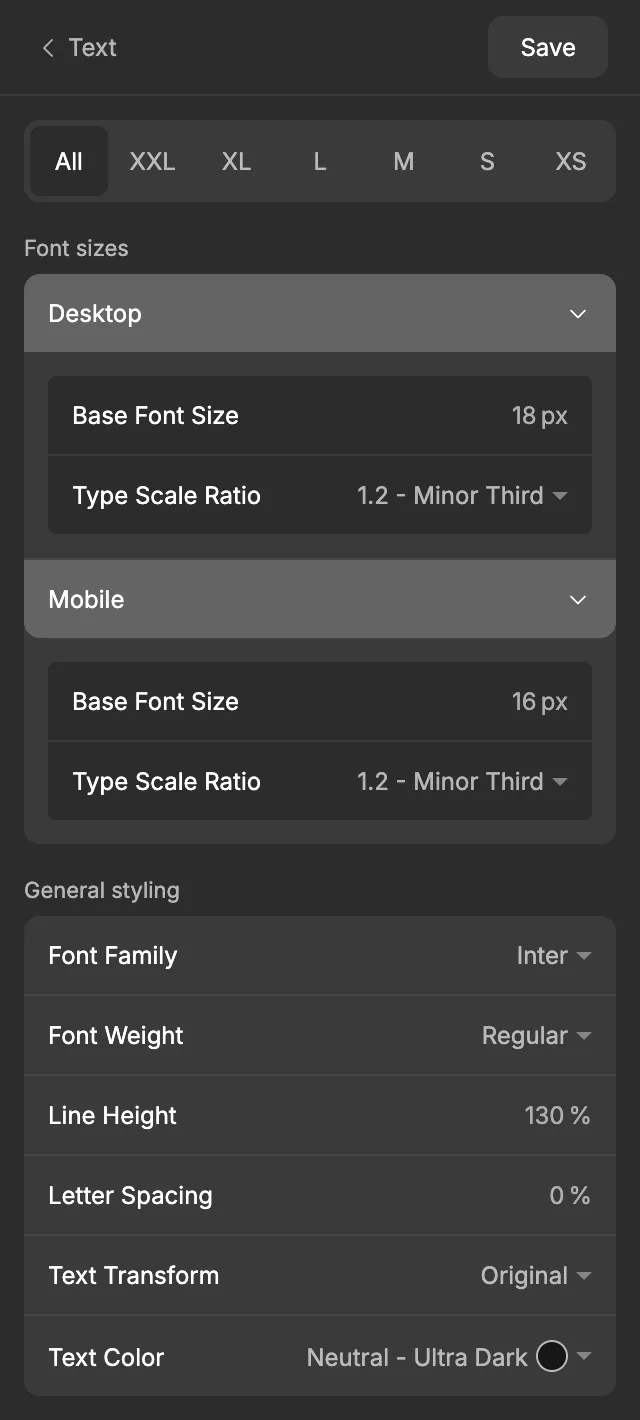
Section titled “General styling”Also on the All tab. These settings apply to every level unless you change a level on its own tab.
| Setting | Default | What it does |
|---|---|---|
| Font Family | Inter | The font for all headings, or all text. Type in the search box to find a font. |
| Font Weight | Regular | The weight. The list shows the styles your chosen font has, including italics like Bold Italic. |
| Line Height | 130 % | A percentage of the font size. The plugin turns it into pixels for each size, so a 31 px H1 gets a 40 px line height. |
| Letter Spacing | 0 % | A percentage of the font size, like Figma’s own letter spacing in %. |
| Text Transform | Original | Original, Uppercase, Lowercase or Title case. Sets the text case in the text styles. |
| Heading Color (Headings) or Text Color (Text) | Neutral - Ultra Dark | The color for headings, or for body text. Pick any shade from your palette. |
Fine-tuning one level
Section titled “Fine-tuning one level”Open a level’s tab, for example H1, to change only that level.
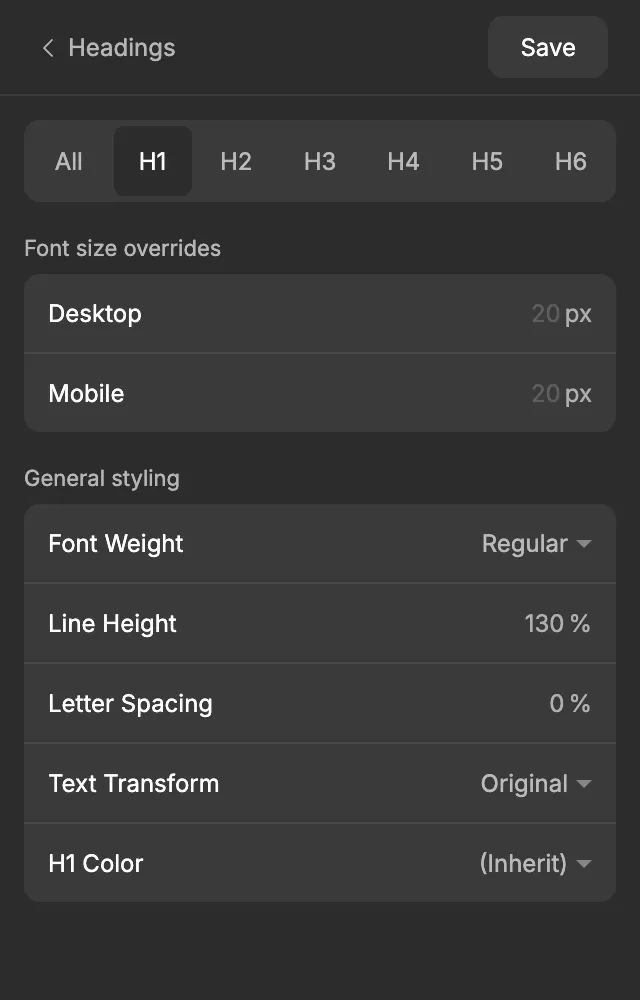
- Font size overrides: a Desktop and a Mobile field. They start empty, and the grey number in each is the calculated size. Type a number to use that size instead.
- General styling: Font Weight, Line Height, Letter Spacing and Text Transform for this level. The Font Weight list shows the same font styles as on the All tab. Heading levels also have their own color (H1 Color … H6 Color). Its default, (Inherit), means it uses the Heading Color. Text levels have no color of their own; they all use the Text Color.
Each level starts with the values from the All tab and follows them when you change them there. Once you change a value on a level’s tab, a dot appears next to its label, and that value no longer follows the All tab. Hover over the dot to see Reset, and click it to go back to the All tab’s value (or the calculated size).
When you’re done, click Save. See Saving and auto-save for what Save does.
What gets created in Figma
Section titled “What gets created in Figma”Text styles
Section titled “Text styles”The plugin creates 24 text styles, one per level for desktop and for mobile:
| Text styles | What they’re for |
|---|---|
Headings/D H1 … Headings/D H6 |
Headings in desktop designs. |
Headings/M H1 … Headings/M H6 |
Headings in mobile designs. |
Text/D Text XXL … Text/D Text XS |
Body text, intros, captions and other text in desktop designs. |
Text/M Text XXL … Text/M Text XS |
The same in mobile designs. |
Each text style sets the font family, weight, size, line height (in pixels), letter spacing (in %) and text case.
Variables
Section titled “Variables”The variables go into the Typography collection, in a Headings group and a Text group.
| Variable | Code syntax | What it’s for |
|---|---|---|
Headings/D H1 … Headings/D H6, Headings/M H1 … Headings/M H6 |
var(--h1) … var(--h6) |
Heading font sizes. |
Text/D Text XXL … Text/D Text XS, Text/M Text XXL … Text/M Text XS |
var(--text-xxl) … var(--text-xs) |
Text font sizes. |
Headings/D H1 Line Height …, Text/D Text XXL Line Height … (and the M versions) |
none | Line heights in pixels, one per size. |
Headings/Heading Font Weight, Headings/H1 Font Weight … H6 Font Weight (and the same under Text/) |
none | Font weights as numbers, for example 400 for Regular and 700 for Bold or Bold Italic. Italic itself is set in the text styles. |
Headings/Heading Letter Spacing, Headings/H1 Letter Spacing … (and the same under Text/) |
none | Letter spacing in %. |
Headings/Heading Font Family, Text/Text Font Family |
none | The font names. |
Headings/Heading Color |
var(--heading-color) |
The heading color. |
Headings/H1 Color … Headings/H6 Color |
var(--h1-color) … var(--h6-color) |
Each heading level’s color. A level set to (Inherit) uses the same color as Heading Color. |
Text/Text Color |
var(--body-color) |
The body text color. |
Font sizes and line heights come in desktop (D) and mobile (M) versions. Weights, letter spacing, fonts and colors are the same on both, so there’s one of each.
Desktop and mobile font sizes share the same code syntax. A developer sees var(--h2) in Dev Mode whichever version you used, because in ACSS it’s one fluid size that moves between the mobile and desktop values.
The color variables point to variables in the Color Palette, so they change when your palette changes.
Using it in your designs
Section titled “Using it in your designs”Apply a text style for the font, size and spacing, then a color variable for the color.
- Select a text layer.
- In the right sidebar, in the Typography section, click the style icon and pick a text style, for example
Headings/D H2in a desktop design. - In the Fill section, click the style and variable icon and pick a color variable, for example
Headings/H2 Color, orText/Text Colorfor body text.
Use the D styles in desktop frames and the M styles in mobile frames. The size variables are also handy on their own, for example to set the font size of a text layer inside a component.
In WordPress
Section titled “In WordPress”When you export to WordPress, your typography settings become the ACSS typography settings. The export includes, for headings and for text:
- the desktop and mobile Base Font Size and Type Scale Ratio
- Font Family, Font Weight, Line Height, Letter Spacing and Text Transform, for all levels and for each level. An italic weight, like Bold Italic, also makes the headings or text italic in ACSS. Letter spacing is exported in em, so 2 % becomes
0.02em. - Heading Color, each heading level’s color, and Text Color
- any font size overrides, as that level’s desktop and mobile size
- the sizes of H5, H6, Text S and Text XS. ACSS gives these small sizes fixed values by default, so the export always sets them to your Figma sizes.
ACSS builds the same scales from your base sizes and ratios, with H4 and Text M at the base size, and makes every size fluid. On large screens a heading uses your desktop size, on small screens your mobile size, and in between it scales smoothly.
H4 and Text M have no line height of their own in ACSS: they use the base heading and text line height. So the export uses the H4 Line Height as the line height for all headings, and the Text M one for all text. Every other level gets its own line height, so all sizes match Figma.
Learn more in the ACSS docs on fluid headings and fluid text.
Good to know
Section titled “Good to know”- Text Color is the same setting as Default in the Text section of the Backgrounds & Text screen. Change it in one place and the other follows.
- When you switch fonts, each Font Weight moves to the closest style the new font has. An italic stays italic if the new font has italics. Check the weights after switching fonts.
- Teammates who open the file need the same fonts. A font that’s only installed on your computer shows up as missing for them.
- The plugin owns its text styles. If you edit one of them in Figma, the next Save puts the plugin’s values back. Make changes in the plugin instead.
- If you rename a text style or variable in Figma, the next Save creates a new one with the original name, and the renamed one stops updating. Keep the plugin’s names.